Huawei FRP Bypass: Google FRP vs Huawei ID, EMUI Limits, and Safer Next Steps
Huawei and Honor FRP cases need careful diagnosis because not every locked Huawei screen is a Google FRP lock. Some older EMUI devices may show Google verification after a factory reset, while newer Huawei or Honor devices may show a Huawei ID activation screen instead. This guide helps legal device owners identify the lock type, understand why no-PC or APK methods often fail, and choose a safer next step.
Quick Answer
- Google FRP and Huawei ID are different. Google FRP usually asks you to verify a previously synced Google account. Huawei ID activation is tied to Huawei’s own account system.
- No-PC Huawei FRP methods are limited. Many older TalkBack, browser, APK, and settings-shortcut routes no longer work on newer EMUI or HarmonyOS builds.
- Firmware downgrade and hardware-level methods are risky. Wrong firmware, region mismatch, anti-rollback limits, or hardware handling can damage the device.
- Do not guess the method. Start by confirming lock type, system version, model, PC access, and legal ownership.
- Recommended next step: use the FRP Solution Finder or compare safer method categories before trying any tool or firmware path.
Legal Use Notice
UnlockLab provides FRP troubleshooting information only for users who legally own the device or are authorized to access it. We do not support unlocking lost, stolen, found, or unauthorized devices. If you cannot confirm legal ownership or authorization, stop here and read the Legal Use Notice.
Step 1: Confirm the Lock Type
Before choosing any Huawei or Honor FRP method, confirm what screen you are actually seeing. Applying a Google FRP method to a Huawei ID activation screen will not solve the problem.
| Screen or Situation | What It Usually Means | Recommended Check | Next Step |
| “Verify your account” after factory reset | Likely Google FRP on an Android-based EMUI device | Confirm the device model, EMUI / Android version, and whether the previous Google account is known | Check what FRP lock means |
| “Activate device” or Huawei ID prompt | Likely Huawei ID activation, not standard Google FRP | Confirm whether the device is tied to a Huawei account and whether proof of ownership is available | Use official recovery or account support options first |
| Unknown system version or model | The method cannot be matched safely yet | Check model number, build clues, receipt, box, SIM tray, or previous owner information | Identify Android version clues |
| Bootloop, recovery mode, or firmware error | May be a system or firmware issue, not a normal FRP-only case | Avoid random firmware files and first diagnose the device condition | Review failed FRP method signs |
Huawei FRP vs Huawei ID: Why This Matters
Older Huawei and Honor devices that shipped with Google services may show a standard Google verification screen after a factory reset. In that case, the issue is closer to a normal Android FRP case.
Newer Huawei or Honor devices may show a Huawei ID activation screen instead. That is not the same as Google FRP. APK, TalkBack, browser, or Google account methods usually will not apply to a Huawei ID activation screen. For those cases, users should rely on proof of ownership, official account recovery, seller support, or authorized service channels.
Huawei Method Decision Table
Use this table to decide which Huawei / Honor path is realistic before trying random APK files, firmware packages, or tool downloads.
| Method | Best For | Requires PC? | Likely Fit? | Main Limitation | Recommended Next Step |
| No-PC TalkBack / browser route | Older EMUI cases where setup-screen entry points still open | No | Limited | Browser, accessibility, keyboard, or settings shortcuts may be patched | Check no-PC method limits |
| FRP APK route | Devices that still allow browser access, APK download, and installation | No | Low to limited | APK install, unknown sources, or settings access may be blocked | Understand APK method limits |
| Firmware downgrade | Technician-level recovery or compatibility work | Yes | High risk | Wrong model, region, firmware, or anti-rollback status can damage the device | Do not use random firmware sources |
| Huawei-focused professional tools | Advanced users or repair environments checking supported models | Yes | Case-dependent | Support depends on chipset, drivers, USB mode, model, region, and tool compatibility | Compare FRP tool categories |
| PC-based guided option | Users with a Windows PC after manual or APK routes fail | Yes | More realistic for complex cases | Compatibility must be checked before using any paid or third-party tool | Compare PC-based FRP options |
Why Older Huawei No-PC Methods Often Fail
Many older Huawei FRP videos rely on setup-screen shortcuts. These may include TalkBack routes, browser access, keyboard settings, share-menu links, APK installers, or hidden settings screens. On newer EMUI, HarmonyOS, or security-patched builds, those entry points may be restricted or redirected.
Common failure signs include:
- TalkBack opens but does not expose the expected menu.
- Browser access is blocked from the setup screen.
- The APK downloads but cannot install.
- Unknown sources cannot be enabled.
- Settings opens only partially or returns to setup.
- The screen is Huawei ID activation rather than Google verification.
If you already see these signs, repeating the same no-PC or APK method usually will not help. Review why FRP bypass methods fail before trying another route.
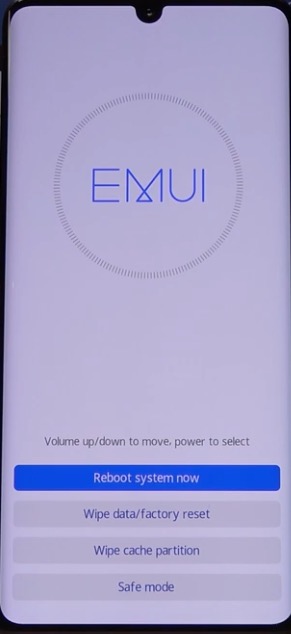
Recovery mode may show model or build clues, but it does not remove FRP by itself.
Firmware Downgrade and Test-Point Claims: What to Avoid
Huawei and Honor searches often lead to firmware downgrade instructions, test-point diagrams, dongle tools, and repair-shop workflows. These topics are risky for non-technical users. Opening the device, flashing mismatched firmware, using the wrong region build, or running untrusted executable files can cause bootloops, soft-bricks, data loss, or permanent hardware damage.
UnlockLab does not recommend copying hardware or firmware steps from random videos or download pages. If your case involves recovery mode errors, firmware damage, or hardware-level service mode, treat it as an advanced repair situation instead of a normal no-PC FRP case.
When a PC-Based Option Makes Sense
A PC-based path may be worth comparing if the device is a legal-owned Huawei or Honor phone, the screen is actually Google FRP, and no-PC or APK routes are blocked. Before using any tool, check the exact model, EMUI / Android version, chipset if known, USB connection, driver requirements, and whether the tool supports your device state.
Do not treat any tool as universal. Huawei and Honor support can vary sharply by model, region, system version, chipset, and security patch. A tool that supports one Huawei model may fail on another.
Compare PC-Based FRP Options
|
Compare FRP Tool Alternatives
If Your Huawei FRP Method Already Failed
Do not repeat the same failed method unless you know what changed. First identify where the route stopped:
- Was the screen actually Google FRP or Huawei ID activation?
- Did browser access fail?
- Did APK download or installation fail?
- Did Settings fail to open?
- Did a PC tool fail to detect the device?
- Did the device show recovery, bootloop, or firmware errors?
For repeated failures, start with the FRP bypass not working guide and then return to the Finder if you are unsure which path fits your device.
How to Choose the Right Huawei / Honor FRP Path
- Choose the Google FRP path if the screen says “Verify your account” and asks for a previously synced Google account.
- Use official Huawei account recovery if the device shows Huawei ID activation instead of Google verification.
- Check no-PC limits first only if browser, settings, accessibility, or APK installation still works.
- Compare PC-based options if manual or APK routes are blocked and you have a Windows PC.
- Stop and diagnose if the device is in bootloop, recovery mode, fastboot mode, or shows firmware errors.
Related Guides
FAQ: Huawei FRP Bypass
Is Huawei FRP the same as Huawei ID lock?
No. Google FRP usually asks for a previously synced Google account after factory reset. Huawei ID activation is tied to a Huawei account and should be handled through official ownership or account recovery options.
Can I bypass Huawei FRP without a PC?
Sometimes, but only on limited older cases where browser, settings, accessibility, or APK installation entry points still work. On newer EMUI or HarmonyOS builds, no-PC routes are often blocked.
Why do Huawei TalkBack or APK methods fail?
They often fail because the setup-screen entry point is patched. The phone may block browser access, APK installation, unknown sources, settings shortcuts, or the route may not apply because the screen is Huawei ID activation instead of Google FRP.
Should I downgrade Huawei firmware to remove FRP?
Firmware downgrade is risky and can damage the device if the model, region, build, or anti-rollback status is wrong. Non-technical users should not rely on random firmware files or executable download pages.
Do PC tools work on every Huawei or Honor device?
No. Tool support depends on model, chipset, system version, region, USB mode, drivers, and security patch. Always check compatibility before using any tool.
What should I do if I do not know whether it is FRP?
Check the exact screen message first. If it says “Verify your account,” it may be Google FRP. If it says “Activate device” or asks for Huawei ID, it is likely a different account lock. You can also start with the FRP Solution Finder.