Bypass FRP Without PC: Reality Check & Verified Methods (2026 Guide)
Buying a used phone only to find it locked is a sinking feeling. Whether you purchased a second-hand Galaxy A12 or found an old Moto G in a drawer, hitting the “Verify your account” screen after a factory reset stops you cold. You are likely here because you don’t have a laptop available, or you are standing in a store trying to verify if a device works.
However, the internet is full of outdated advice. You may have watched videos where the creator taps “Help & feedback,” but that menu option is missing on your screen. You might have tried drawing an “L” shape for TalkBack with no response. This guide filters out the noise. We will systematically identify your Android security patch first, then test the bypass FRP without pc methods that actually apply to your specific software, helping you determine when to stop searching and find a computer.
Step 0: How to Identify Your Android Version on a Locked Screen
You cannot choose the right method if you don’t know what Android version you are running.
Most guides skip this step, creating a catch-22: you need to know your version to unlock the phone, but you can’t check settings because the phone is locked. To solve this, we must force the device into Recovery Mode to read the system logs.
- Turn off the device completely.
- Boot into Recovery:
- Samsung (Modern): Connect the phone to a charger or another phone via USB cable. Press and hold Power + Volume Up.
- Most Other Androids: Press and hold Power + Volume Down (or sometimes Power + Volume Up, depending on the brand).
- Read the Logs:
Once the black screen with command text appears, look at the top yellow or blue text lines. You are looking for a string of numbers like 14/UP1A... or 13/TP1A....
-
- The first number (e.g.,
9,10,11,13) is your Android Version.
- The first number (e.g.,
Samsung S24+ in Recovery Mode
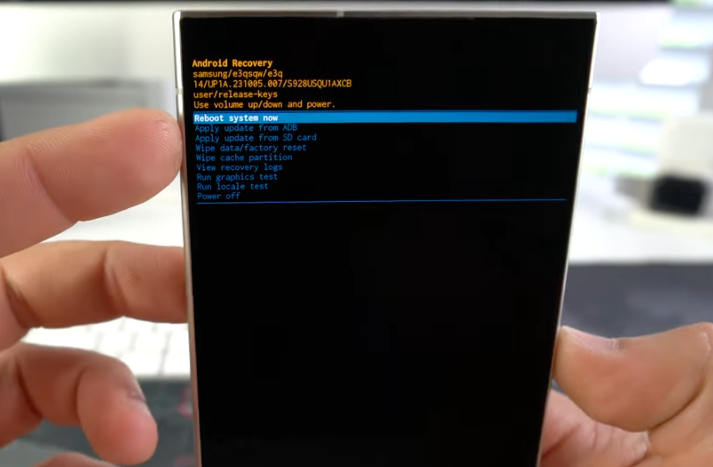
Once you know your number, use the “Reboot system now” option (use Volume keys to scroll, Power to select) and check the matrix below.
Decision Matrix: Will a No-PC Method Work?
Success in bypassing Google account verification without a computer hinges on your version number.
Newer security updates sandbox the vulnerabilities that older tutorials rely on. If you try an Android 9 method on an Android 14 device, it will fail because the manufacturer has removed the menu entry points.
| Android Version | Success Rate (No PC) | Primary Method | Brand Variance |
| Android 8, 9, 10 | High | TalkBack / Keyboard Settings | Works on almost all brands. |
| Android 11 | Medium | SIM PIN / Notification Glitch | Harder on Samsung (Knox); easier on Motorola/Pixel. |
| Android 12, 13, 14+ | Zero / Low | N/A (Requires PC Tools) | Google patched “intent redirection” (apps opening other apps). |
The Hard Truth: If your recovery logs showed Android 12, 13, or 14, standard no-PC methods are effectively dead. You should skip directly to the “PC Alternatives” section. If you are on Android 11 or older, proceed to Method 1.
Method 1: The TalkBack Accessibility Trick (Android 8–10)
Best for: Android 8, 9, 10
Concept: Use accessibility features to force a browser window to open via the “Help & feedback” menu.
This relies on TalkBack, a screen reader for visually impaired users. In older Android versions, TalkBack had a loophole that allowed users to navigate to external links (like YouTube terms of service), which then opened the Chrome browser.
Step-by-Step Execution
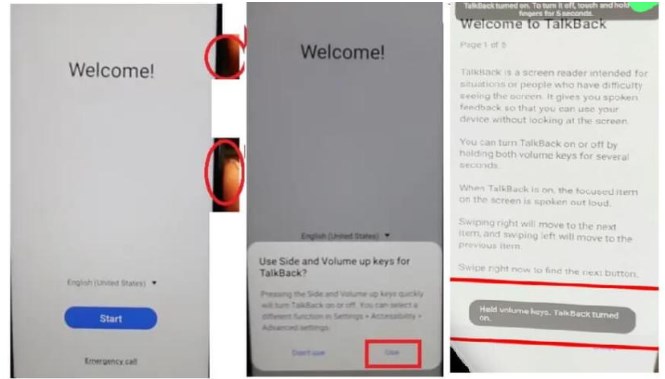
- Enable TalkBack:
- The Modern Way: On the “Hello” or “Start” screen, press and hold Volume Up + Volume Down simultaneously for 3 seconds. A pop-up may ask to “Use shortcut?”—tap Use, then hold the buttons again.
- The Old Way (Android 8): Place two fingers on the screen and hold them there until the voice starts speaking.
- The Gesture:
Once the voice assistant is active, you need to open the context menu.
-
- Draw an “L”: Swipe down, then right in one continuous motion.
- If that fails: Try a “Reverse L” (Swipe up, then right).
- Navigate the Menu:
- Tap once to select TalkBack Settings, then double-tap anywhere to open it.
- Tip: Navigation is difficult in this mode. Use two fingers to scroll up and down.
- Double-tap Help & feedback.
- Trigger the Browser:
- Tap the search icon and type “Voice”. Select the article “Control your Android device with Voice Access.”
- Find the embedded YouTube video. Tap the Play button.
- Tap the Video Title (white text) or the Share arrow. This should launch the YouTube app, which will then redirect you to Chrome or Samsung Internet.
Enable Talkback
Once Chrome is open, you have successfully bypassed the lock screen. Proceed to the “Safe APK Sideloading” section.
Method 2: The Keyboard & Language Gap (Pre-Android 12)
Best for: Devices where TalkBack is patched, but Android is older (Android 8-10).
Concept: Accessing the privacy policy through the keyboard settings to launch a browser.
If TalkBack settings are disabled, the keyboard often provides a backdoor.
- Trigger the Keyboard: Tap any text field (like the Wi-Fi password box).
- Open Settings: Look for a generic icon on the keyboard—usually a Globe icon or a Gear icon.
- If it’s a Globe: Long-press it and select Language Settings.
- If it’s a Gear: Tap it to open Keyboard Settings.
- Find a Link: Navigate to About Keyboard, Legal, or Privacy Policy. You are looking for any clickable text that looks like a hyperlink.
- Launch: Tapping a privacy policy link usually opens the system browser. From there, you can download bypass tools.
Method 3: SIM PIN & Notification Glitch (Android 11)
Best for: Android 11 (Samsung, Motorola, generic brands).
Concept: Confusing the phone by ejecting a SIM card and locking the screen at the exact same millisecond.
This is the most common Samsung FRP bypass method for Android 11, but it requires dexterity. We are exploiting a “race condition” where the phone tries to display the SIM lock and the notification shade simultaneously.
The Timing Mechanism
- Preparation: Use a different phone to set a PIN code on a spare SIM card.
- Insertion: Insert the locked SIM into the FRP-locked device. Wait for the PIN entry screen.
- The Glitch:
- Place your SIM ejector tool in the hole.
- Eject the tray and press the Power button at the exact same moment.
- The screen should turn off.
- Entry:
- Wake the screen (Power button).
- Instead of the lock screen, you should see a “Not Signed In” notification or a stuck notification bar.
- Swipe down on the notification. Tap the Bell Icon or App Settings.
- This grants access to the Settings menu, where you can navigate to Apps > Chrome > Open.
Troubleshooting: If this does not work after 5–10 attempts, your specific security patch has likely fixed this vulnerability.
Safe APK Sideloading: The “APKMirror Rule”
Once you have browser access, you need an app to finalize the unlock.
Most tutorials tell you to download “FRP Bypass” or “Google Account Manager” (GAM) from random websites. This is dangerous. You cannot run a virus scan on a locked phone, and many of these files are infected.
The Golden Rule: Only download files from APKMirror or similarly verified repositories. Avoid generic “FRP Tool” sites with pop-up ads.
What to Download
- Google Account Manager (GAM): You need the version matching your Android number (e.g.,
Google Account Manager 9.0). - FRP Bypass (or QuickShortcutMaker): This is a small utility that forces the “Type Email and Password” prompt to appear.
Procedure:
- Install GAM first.
- Install and Open “FRP Bypass.”
- Tap the three dots in the top corner → Browser Sign-in.
- Enter your valid Google account credentials.
- Restart the phone. The device will now recognize your account as the owner.
The “No-PC” Wall: Android 12, 13, and 14
If your device is running Android 12 or higher, the methods above will almost certainly fail.
Modern Android security has introduced strict “sandboxing.” Even if you manage to open the “Help & feedback” page, clicking a YouTube link will likely result in an error saying the app cannot be opened. Furthermore, the Google Assistant command “Open Settings” is now blocked until a user signs in.
This is not a failure of your technique; it is the software functioning as designed.
- TalkBack: The “L” gesture menu has been simplified; the “Help” shortcut is gone.
- Emergency Codes: The
*#0*#test menu (used for Samsung tools) works, but usually requires a USB connection to send the unlock command. - Setup Wizard: Google has patched the ability to crash the Setup Wizard.
If you are on these versions, do not download random APKs promising a miracle. You need to pivot to a computer-based solution.
Next Steps: When You Must Use a Computer
When on-device exploits fail, a USB connection is the only key that fits the lock.
I know the goal was to avoid a computer, but for modern Android 13/14 devices, accepting this limitation saves you time. You don’t need a powerful gaming rig—any basic Windows laptop will do.
Preparing for a PC Bypass
If you can borrow a laptop for 15 minutes, ensure you have these three things:
- Data Cable: A high-quality USB-C cable. (Verify it transfers data, not just power).
- Drivers: Install the “Samsung USB Drivers” or “Universal Android Drivers” on the PC.
- The Tool: Software like SamFw Tool (free) is currently the industry standard for legitimate FRP removal via the
*#0*#test mode.
Frequently Asked Questions (FAQ)
I bypassed the Google lock, but now it asks for a Samsung/Mi Account. Why?
FRP and Manufacturer Clouds are different. This guide removes the Google lock. If the previous owner also enabled Reactivation Lock (Samsung) or Find Device (Xiaomi), you are facing a second layer of security that requires the original password or a specific manufacturer unlock service.
Can I bypass FRP on Android 14 without a PC?
No. Android 14 security patches have closed the accessibility and browser exploits that previous methods relied on.
Why doesn’t the TalkBack ‘Help & feedback’ option appear on my phone?
Google removed it. If you are on Android 11 or newer, the menu has been updated to prevent exactly this kind of bypass.
Is the SIM PIN pop-up trick safe?
Yes, physically safe. It won’t damage the phone, but it requires precise timing. If it fails 10 times, your software version has likely patched the glitch.
Will a future update relock my device?
Rarely. Once you bypass FRP and add your own Google account, you become the verified owner. A future factory reset will simply ask for your password, which you now know.
Conclusion: Regaining Access
Facing a locked screen on a device you legally own is stressful. If your recovery logs confirm you are running Android 8, 9, or 10, the TalkBack and Keyboard methods detailed above offer a real path to unlocking your device without hardware.
However, if you are on Android 12, 13, or 14, recognizing the “No-PC” limitation is the most important step. Stop wrestling with patched exploits. Borrowing a laptop for ten minutes to run a verified tool is the safest, fastest route to getting your phone back online.
More Related Articles
- How to Bypass FRP with a PC: 2026 Step-by-Step Guide
- Google FRP Lock Bypass with Odin: The Real Method for 2026
- How to Realistically Bypass FRP with ADB in 2026 (A Step-by-Step Guide)