FRP Bypass Not Working? Here’s What It Usually Means
If FRP bypass is not working on your Android phone, the most likely reason is not that you missed one small step. In most cases, the method is outdated, your Android version is too new, or the required entry point is blocked.
If you are using Android 12, Android 13, Android 14, or Android 15 and APK, TalkBack, YouTube, or no-PC methods have already failed, the practical next step is usually not to keep trying random methods. A PC-based Android tool such as DroidKit may be worth checking, as long as your device scenario is supported.
APK, TalkBack, or no-PC FRP method failed?
If your phone is on a newer Android version and the usual manual methods are blocked, check whether DroidKit’s FRP feature supports your device before trying more random APKs or outdated shortcuts.
Legal use only: UnlockLab provides FRP guidance only for legal device owners or authorized users. We cannot help bypass protection on stolen, found, borrowed, or unauthorized devices.
Quick Answer: What Should You Do If FRP Bypass Is Not Working?
First, stop repeating the same failed method. If an APK will not open, TalkBack no longer shows the expected menu, or a YouTube no-PC method does not reach settings, repeating the same steps usually will not change the result.
For older Android versions, such as some Android 8, Android 9, Android 10, or Android 11 devices, a manual method may still be worth checking if browser, settings, or APK access is still available. But for Android 12 or later, failed APK and no-PC methods usually point to a method limit, not a simple user mistake.
In that situation, a PC-based tool such as DroidKit may be more practical than trying more random APK files. DroidKit is not a guaranteed solution for every phone, so the important step is to check whether your device brand, Android version, and current FRP screen are supported.
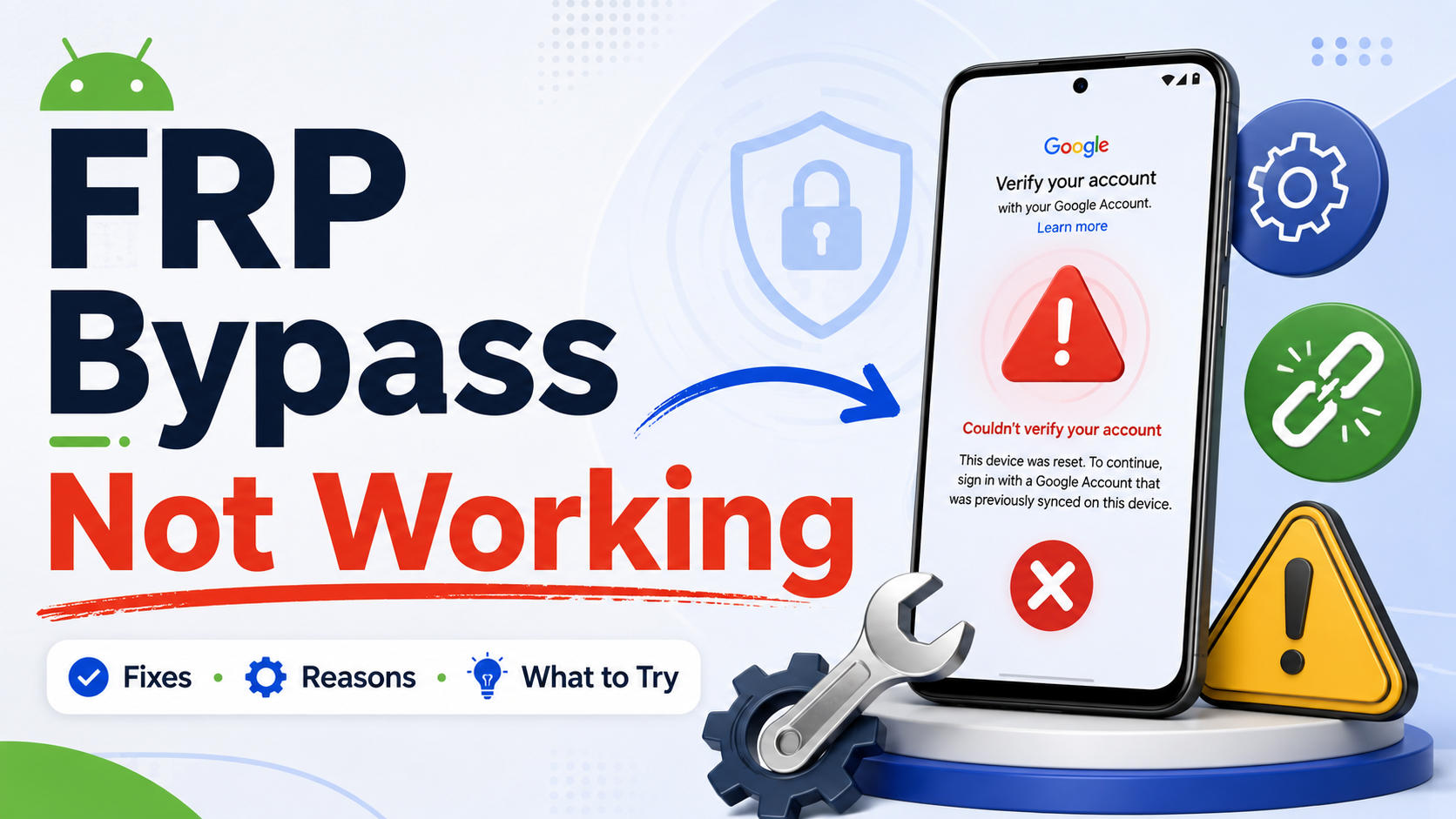
FRP Bypass not working
First: Stop Repeating the Same Failed FRP Method
Many users search for “FRP bypass not working” after trying several APK files, watching multiple YouTube videos, or repeating the same no-PC shortcut again and again. That usually creates more confusion, not progress.
FRP methods are sensitive to small differences. A guide may work on one phone but fail on another because of Android version, security patch, brand setup-screen changes, missing browser access, blocked APK installation, or tool compatibility limits.
So if the same route failed twice, the better question is not “Which random APK should I try next?”. The better question is: does this method still fit my device?
What Your Failed FRP Method Usually Means
Use this table as a quick decision guide. It is not meant to send you through many pages. It is meant to help you understand what the failure usually tells you.
| What Failed | What It Usually Means | Better Next Step |
| FRP APK will not install or open | The APK entry point is blocked. Browser, file manager, package installer, or unknown sources may be unavailable. | Do not keep downloading random APKs. Check whether a PC-based tool such as DroidKit supports your case. |
| TalkBack shortcut does nothing | The accessibility shortcut may have been patched or changed by your Android version or brand skin. | Stop repeating the same TalkBack steps. Newer Android versions often need a different path. |
| YouTube no-PC method does not reach settings | The video likely depends on an older browser, keyboard, notification, or settings shortcut. | If you are on Android 12 or later, check a PC-based FRP option instead of repeating the same video. |
| FRP tool does not detect the phone | The tool may not support your brand, chipset, Android version, security patch, USB state, or current device mode. | Check compatibility before switching to another tool. |
The 3 Main Reasons FRP Bypass Fails
1. The Method Is Outdated
Many FRP bypass methods rely on shortcuts inside Android setup, browser access, TalkBack menus, keyboard settings, app links, or settings pages. These routes often stop working after Android or security updates.
This is why a method can look real in a video but still fail on your device. The method may have worked before, but your current Android version or patch no longer allows the same path.
2. Your Android Version Is Too New for the Method
Older no-PC and APK methods are more likely to work on older Android versions. On newer versions, especially Android 12, Android 13, Android 14, and Android 15, these methods are often blocked earlier in the setup process.
If your device is on Android 14 or Android 15, old APK and no-PC shortcuts are less likely to work. You can review the version-specific limits here: Android 14 FRP bypass limits and Android 15 FRP bypass compatibility.
3. Your Device Conditions Do Not Match the Method
Even if a method still works in some cases, it may not match your device. FRP results can change based on brand, model, Android version, security patch, USB mode, chipset, and which verification screen you are currently stuck on.
For example, a Samsung method may not apply to Xiaomi or Redmi. A method for an older security patch may fail on a newer patch. A tool that works with one chipset may not work with another.
Can DroidKit Help When FRP Bypass Is Not Working?
DroidKit is a PC-based Android utility that includes FRP-related features for supported devices. It may be relevant when APK, TalkBack, YouTube, or no-PC methods have already failed, especially on newer Android versions where manual entry points are often blocked.
That does not mean DroidKit works for every Android phone. FRP results still depend on your device brand, model, Android version, security patch, computer access, and current verification screen. You should check compatibility before downloading or purchasing any tool.
DroidKit is most worth considering when:
- your device is on Android 12 or later;
- FRP APK methods will not install or open;
- TalkBack or accessibility shortcuts no longer work;
- YouTube no-PC methods failed;
- you have access to a Windows or Mac computer;
- you want a clearer PC-based path instead of trying more random APK files.
If your device is older and still allows browser, settings, or APK access, a manual method may still be worth checking first. If newer Android restrictions are blocking those paths, DroidKit may be a more practical option to review.
What to Try Next Based on Your Situation
If You Are on Android 8, 9, 10, or Some Android 11 Devices
A manual method may still be worth checking if your device still allows access to browser, settings, keyboard, accessibility shortcuts, or APK installation.
For this kind of older-device case, review the limits of FRP bypass without PC or the suggested FRP APK method before moving to a PC-based tool.
If You Are on Android 12, Android 13, Android 14, or Android 15
If APK, TalkBack, or no-PC methods already failed on Android 12 or later, the issue is likely a method limitation. Trying more random APKs or repeating the same video method usually has low value.
At that point, checking whether DroidKit supports your device is usually more useful than continuing to search for another shortcut.
If a Tool Failed
A failed tool does not always mean you need another tool immediately. It may mean your device state is not supported. Before switching tools, check whether the tool matches your brand, chipset, Android version, security patch, computer system, and USB mode.
Avoid tools or downloads that claim to work for every Android phone. FRP compatibility is never universal.
If You Have Tried Many Methods Already
Repeated failure usually means the device needs a more structured path. At that point, the goal should be to stop guessing and choose the method category that actually fits your Android version and device state.
For most newer Android cases with repeated APK or no-PC failure, that points toward checking a PC-based tool such as DroidKit first.
When DroidKit Makes More Sense Than Another APK
DroidKit makes more sense to review when the phone is on a newer Android version and manual paths are already blocked. This is especially common when:
- FRP APK does not install or open;
- browser or settings access is blocked;
- TalkBack shortcuts do not work;
- YouTube no-PC methods fail;
- the phone runs Android 12, 13, 14, or 15;
- you have already tried several manual methods without success.
DroidKit is not a guarantee. It still needs compatibility checks. Your device brand, model, Android version, security patch, computer access, and current setup-screen state all matter.
But if your current situation is “APK failed, no-PC failed, TalkBack failed, and I am using a newer Android version,” then continuing to search for another random APK is usually not the best next step.
What You Should Avoid After FRP Bypass Fails
After a failed FRP attempt, avoid making the problem harder by trying too many unsafe or mismatched methods.
- Do not keep repeating the same YouTube method if the shortcut is blocked.
- Do not install random APK files just because one APK failed.
- Do not trust claims like “works on all Android versions”.
- Do not assume a tool supports every Samsung, Xiaomi, OPPO, Vivo, or Motorola device.
- Do not attempt FRP removal on a device you do not legally own or are not authorized to manage.
Bottom Line
If FRP bypass is not working, the answer is usually not to keep searching for another random shortcut. The failure is telling you something about your device: the method may be patched, the Android version may be too new, or the device may not match the tool or guide you are using.
For older Android devices, method-specific guides may still help. For Android 12, Android 13, Android 14, or Android 15 with repeated APK, TalkBack, or no-PC failure, checking DroidKit’s FRP compatibility is a more practical next step than repeating the same failed method.
Still seeing “FRP bypass not working” after APK, TalkBack, or no-PC methods?
If your device is on a newer Android version, check whether DroidKit supports your FRP scenario before trying more outdated methods.
FAQ: FRP Bypass Not Working
Why is FRP bypass not working on my phone?
FRP bypass usually fails because the method is outdated, the Android version is too new, the security patch blocked the shortcut, or the required APK, browser, TalkBack, or settings entry point is unavailable.
Why does FRP APK not work?
FRP APK methods need an entry point such as browser access, file manager access, package installer access, settings access, or permission to install unknown apps. If those paths are blocked, the APK method usually fails.
Why does FRP bypass without PC fail?
No-PC methods often depend on browser, settings, TalkBack, keyboard, notification, or accessibility shortcuts. These shortcuts are often patched on newer Android versions and security updates.
Why do YouTube FRP bypass methods stop working?
Many YouTube methods rely on old shortcuts or old system behavior. A method that worked on one Android version, brand, or security patch may fail on another device.
Can DroidKit fix FRP bypass not working?
DroidKit may help in supported FRP scenarios, especially when APK, TalkBack, or no-PC methods fail on newer Android versions. However, it does not work for every device. Compatibility depends on brand, model, Android version, security patch, computer access, and current FRP screen state.
Should I keep trying more APK files?
Not if the APK entry point is blocked. If browser, file manager, package installer, or unknown sources access is unavailable, downloading more APK files usually does not solve the main problem.
What should I do if FRP bypass fails on Android 12, 13, 14, or 15?
If APK, TalkBack, or no-PC methods already failed on Android 12 or later, check whether a PC-based tool such as DroidKit supports your device. Compatibility still depends on brand, model, Android version, security patch, and device state.
Does UnlockLab guarantee DroidKit or any FRP method will work?
No. FRP methods and tools depend on device brand, model, Android version, security patch, and current device state. UnlockLab does not claim guaranteed results or universal compatibility.
Can UnlockLab help with a phone I do not own?
No. UnlockLab only provides FRP guidance for legal device owners or authorized users. We cannot help bypass protection on stolen, found, borrowed, or unauthorized devices.