How to Check Android Version When Your Phone Is FRP Locked
If your phone is stuck on the Google verification or FRP screen, you usually cannot open Settings to check Android version. This guide helps you use safe clues such as brand, model number, box, receipt, listing, recovery or fastboot information, and explains when to choose “Not sure” in UnlockLab FRP Solution Finder instead of guessing.
If your phone is already FRP locked and stuck on the Google verification screen, you usually cannot open the normal Settings app to check the Android version. The standard Settings > About Phone method only works if the device is still accessible.
If Settings is blocked, do not guess the Android version. Use safe clues such as the model number, original box, receipt, seller listing, carrier account, previous owner information, or recovery/fastboot details if they are already visible. These clues can help identify the device, but they may not prove the current installed Android version.
If you still cannot confirm the Android version, treat it as unknown. A safer next step is to identify the brand, model, PC access, and current stuck screen before choosing an FRP method.
Quick Answer
- If your phone is FRP locked: You usually cannot open Settings normally to check the Android version.
- If you can still open Settings: Use Settings > About Phone to check Android version and security patch level.
- If you cannot confirm the version: Do not guess Android 12, 13, 14, or 15.
- If the brand is known but the Android version is unknown: Start from the brand and model, then choose a method based on device conditions.
- If both brand and Android version are unknown: Identify the device first using safe clues before trying FRP methods.
If you use UnlockLab’s FRP guidance and the Android version is not confirmed, choose “Not sure” instead of guessing. A wrong version choice can lead you to methods that do not fit your device.
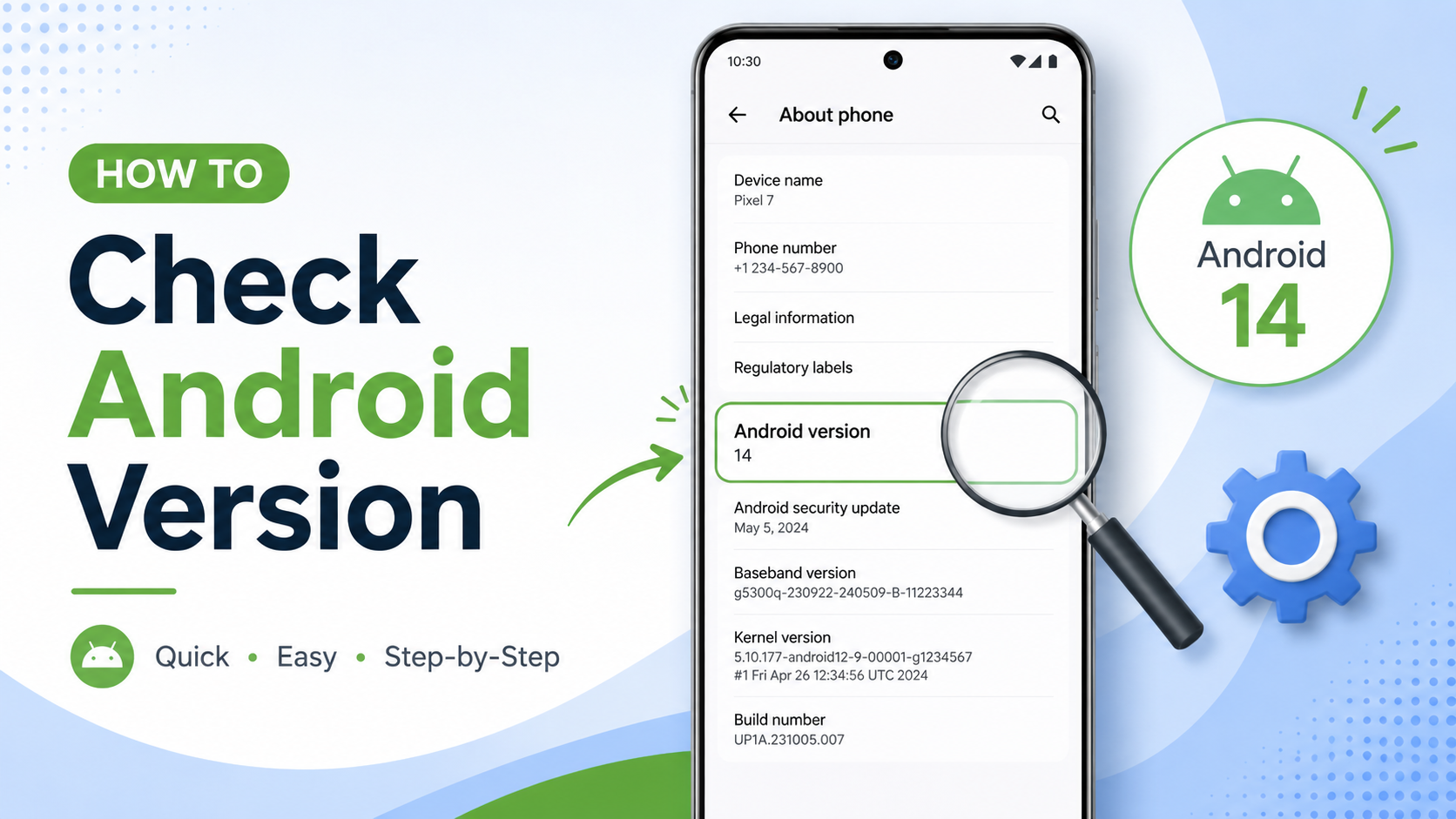
How to Check Android Version When Your Phone Is FRP Locked
On This Page
- Why Settings Usually Does Not Work After FRP Lock
- If You Can Still Open Settings
- Safe Clues You Can Use When Settings Is Blocked
- Clues That Are Not Reliable Enough
- What to Do If Android Version Is Unknown
- If You Know the Brand but Not the Android Version
- Can PC Tools Detect Android Version?
- What You Should Avoid
- FAQ
Why Settings Usually Does Not Work After FRP Lock
FRP, or Factory Reset Protection, is designed to prevent full access to an Android phone after a factory reset until the previously synced Google account is verified. If the phone is stuck on the Google verification screen, normal access to Settings is usually blocked.
That means you usually cannot check the Android version through Settings > About Phone once the device is already FRP locked. This is expected behavior, not a sign that the phone is broken.
For most FRP-locked users, the better approach is to use safe device-identification clues. If the Android version cannot be confirmed, treat it as unknown and avoid choosing methods that depend on a guessed version.
If You Can Still Open Settings
This section only applies if the phone is not fully locked at the Google verification screen and you can still open the normal Settings app.
If Settings is accessible, check these details:
- Open Settings.
- Tap About Phone or About Device.
- Find Android Version.
- Find Android Security Patch Level or Security Update.
- Write down the Model Number.
- If shown, write down the brand software version, such as One UI, MIUI, HyperOS, ColorOS, Funtouch OS, EMUI, or MagicOS.
If Settings is not available, do not force it. Use safe clues instead and treat the Android version as unknown unless it is clearly confirmed.
Safe Clues You Can Use When Settings Is Blocked
When a phone is FRP locked, you may not be able to confirm the exact Android version. However, you can often collect useful clues without bypassing the lock.
| Safe Clue | What It Can Tell You | How Reliable It Is | What to Do |
|---|---|---|---|
| Model number | Device family, brand, launch software range, and possible update range | Medium | Use it to identify the brand and model. Do not treat it as proof of the current Android version unless confirmed. |
| Original box or receipt | Brand, exact model, storage variant, region, or carrier version | Medium | Use it to confirm the device identity. It usually does not prove the latest installed Android version. |
| Seller listing or carrier account | Model name, purchase date, region, and sometimes original software information | Low to medium | Use it as a clue only. The phone may have been updated after purchase. |
| Previous owner information | Last known Android update, security patch, or software version | Low to medium | Use it only if the information is specific. If uncertain, treat the version as unknown. |
| Recovery or fastboot text if already visible | Product name, build, firmware, or patch-related details on some devices | Medium | Use it as a diagnostic clue only. Not all devices show the Android version directly. |
| Boot logo | Brand or device family | Medium for brand, low for version | Use it to identify the brand, not the Android version. |
The safest rule is simple: if the Android version is not clearly confirmed, do not guess. Use the device brand, model, PC access, and stuck screen to choose the next diagnostic path.
Clues That Are Not Reliable Enough
Some clues may look helpful but are not reliable enough to confirm the current Android version.
| Clue | Why It Is Limited | Safer Choice |
|---|---|---|
| Launch Android version | The phone may have received multiple updates after release. | Use it only as a rough clue. Do not select it as the confirmed current version. |
| Old seller listing | The listing may show the original software, not the installed version now. | Use it to confirm model and region, not the current Android version. |
| YouTube FRP method title | Video titles often mention Android versions broadly and may not match your patch level. | Do not assume your version based on a video title. |
| Random FRP tool detection | Tool results depend on drivers, USB mode, brand support, and device state. | Use tools only after you understand what device information is needed. |
| Emergency-call or browser tricks | These routes are often patched, brand-dependent, and may cross into FRP bypass behavior. | Do not use them just to check Android version. Treat the version as unknown instead. |
What to Do If Android Version Is Unknown
If you cannot confirm the Android version, do not guess. Guessing Android 12, Android 13, Android 14, or Android 15 can send you toward methods that do not match your device.
Instead, identify what you can confirm:
- device brand;
- model number;
- whether you have access to a Windows or Mac computer;
- the exact screen you are stuck on;
- whether the phone shows recovery, fastboot, setup wizard, or Google verification;
- whether any safe device information is already visible.
If you use UnlockLab’s Solution Finder, select “Not sure” when the Android version is not confirmed. The goal is to avoid forcing a wrong Android version choice and instead continue from the details you do know.
Suggested next step: use the FRP Solution Finder when Android version is unknown.
If You Know the Brand but Not the Android Version
You can still continue if you know the brand but not the Android version. In many FRP cases, the brand and model are more useful than a guessed Android version.
For example, if the phone is Samsung, start with a Samsung-specific path. If the phone is Xiaomi or Redmi, use a Xiaomi / Redmi path. If the phone is OPPO, Vivo, Motorola, or Huawei, start with the brand and model instead of forcing an Android version guess.
| What You Know | What You Should Do | Useful Starting Point |
|---|---|---|
| Samsung brand, version unknown | Use the Samsung model and current screen first. Do not guess Android version. | Samsung FRP bypass guide |
| Xiaomi or Redmi brand, version unknown | Identify the exact model and region if possible. | Xiaomi / Redmi FRP bypass guide |
| OPPO brand, version unknown | Use brand, model, and PC access to choose the diagnostic direction. | OPPO FRP bypass guide |
| Vivo brand, version unknown | Confirm model number and current setup screen before trying methods. | Vivo FRP bypass guide |
| Motorola brand, version unknown | Start from brand and model clues, then decide whether manual or PC-based paths are realistic. | Motorola FRP bypass guide |
If You Do Not Know the Brand or Android Version
If both the brand and Android version are unknown, the Android version is not the first problem to solve. The first step is to identify the device.
Use safe clues such as the boot logo, original box, receipt, seller listing, SIM tray label, carrier account, model number, or previous owner information. If the phone already shows recovery or fastboot information, you may be able to use visible product or build clues, but do not run commands you do not understand.
If you have access to a computer, a PC-based diagnostic path may help identify the device more clearly in supported cases. If you do not have a computer, focus on collecting brand and model clues before trying no-PC or APK methods.
Do not use random APK downloads, emergency-call tricks, or old video shortcuts just because the brand and Android version are unclear. A wrong method can waste time and may increase risk.
Can PC Tools Detect Android Version on an FRP Locked Phone?
Sometimes PC tools can read partial device information, but this is not guaranteed. Detection depends on the brand, drivers, USB mode, chipset, security patch, and the current state of the phone.
A PC tool should not be treated as a universal Android version detector. It may help in supported cases, but it can also fail if the device is not in the expected mode or the brand is not supported.
For some supported Samsung FRP scenarios with Windows PC access, a guided PC-based tool path may help choose the next step when the Android version is unclear. This should not be treated as the default path for every Android brand.
If you already know your device is on a newer Android version and manual paths are blocked, you may also want to review Android 14 FRP bypass limits or Android 15 FRP bypass compatibility.
What You Should Avoid
When the Android version is unknown, avoid methods that create more uncertainty or push you into risky paths before diagnosis.
- Do not guess Android 14 or Android 15 just because the phone looks new.
- Do not assume the launch Android version is the current installed version.
- Do not use emergency-call, keyboard, Help & Feedback, or browser routes just to check the Android version.
- Do not download random FRP APK files just because the Android version is unclear.
- Do not trust tools that claim to detect or bypass every Android device.
- Do not attempt FRP removal on a device you do not legally own or are not authorized to manage.
Bottom Line
If your phone is FRP locked, you usually cannot check the Android version through normal Settings. If Settings is still available, use Settings > About Phone. If Settings is blocked, use safe clues such as model number, box, receipt, seller listing, carrier account, previous owner information, or visible recovery/fastboot details.
If you cannot confirm the Android version, do not guess. Treat it as unknown and choose the next diagnostic path based on brand, model, PC access, and the screen you are stuck on.
FAQ: Check Android Version When Phone Is FRP Locked
Can I check Android version if the phone is FRP locked?
Usually not through the normal Settings app. If the phone is stuck on the Google verification screen, normal Settings access is usually blocked. Use safe clues such as model number, box, receipt, seller listing, carrier account, previous owner information, or recovery/fastboot text if already visible.
What should I do if I cannot confirm the Android version?
Treat the Android version as unknown. Do not guess Android 12, 13, 14, or 15. Identify the brand, model, PC access, and current stuck screen first.
What if I know the brand but not the Android version?
Start from the brand and model. For example, use a Samsung, Xiaomi / Redmi, OPPO, Vivo, or Motorola brand path instead of forcing an Android version guess.
What if I do not know the brand or Android version?
Identify the device first using the boot logo, model number, original box, receipt, seller listing, SIM tray label, carrier account, or previous owner information. If you have PC access, a supported PC-based diagnostic path may help in some cases.
Can I use Settings > About Phone after FRP lock?
Only if the phone is still accessible. If the device is already stuck on the Google verification screen, normal Settings access is usually blocked.
Can fastboot or recovery show Android version?
Sometimes recovery or fastboot screens show product, build, firmware, or patch-related information, but not all devices show the Android version directly. Use this only as a diagnostic clue and do not run commands you do not understand.
Should I use emergency call or browser tricks to check Android version?
No. UnlockLab does not recommend using emergency call, keyboard settings, Help & Feedback, or browser routes just to check Android version. These paths are often patched, brand-dependent, and may cross into FRP bypass behavior.
Can PC tools detect Android version on an FRP locked phone?
Sometimes, but not always. PC detection depends on drivers, USB mode, brand support, chipset, security patch, and current device state. A PC tool should not be treated as a universal Android version detector.