Android 15 FRP Bypass: What Works, What Fails, and Safer Next Steps
Android 15 FRP bypass methods are more limited than older versions because many TalkBack, APK, browser, and Settings entry points are now blocked. This guide explains what may still work, why common methods fail, how Samsung One UI 7 changes the process, and when to use Solution Finder, a PC-based option, or case review.
Quick Summary
- The Problem: Android 15 blocks many older TalkBack, browser, APK, YouTube, and Settings entry points.
- No-PC Methods: These are only worth checking when the device still has a usable browser, file manager, accessibility, keyboard, or limited Settings route.
- FRP APK Methods: APK-based paths are limited on Android 15 because installation, permissions, and unknown-source settings are often blocked.
- Samsung One UI 7: Samsung Android 15 devices often require Samsung-specific guidance because generic Android methods may fail.
- Tool-Based Methods: SamFW, VNROM, AddROM, MTK tools, MTP tools, and SP Flash Tool are not universal. Compatibility depends on brand, chipset, patch level, USB mode, and device condition.
- Recommended Next Step: Start with the Solution Finder, then compare a brand guide, version guide, no-PC limits, tool limitations, or a PC-based option based on your device case.
Legal Use Notice
UnlockLab provides FRP information only for legal device owners or authorized users. We cannot help bypass protection on lost, stolen, found, or unauthorized devices. If you are not the owner or do not have permission to access the device, do not continue. Read the Legal Use Notice before using any FRP guide.
Not Sure Which Android 15 FRP Method Fits Your Device?
Before trying random APKs or outdated TalkBack steps, check your device brand, Android version, PC access, and current stuck screen. This helps you avoid repeating methods that are already blocked on newer Android 15 patches.
Start FRP Solution Check
|
Check your Android version
Why Android 15 FRP Methods Fail More Often
Android 15 changes how many FRP entry points behave after a factory reset. Older guides often depend on opening the browser, launching Settings, triggering TalkBack shortcuts, installing helper APKs, or accessing hidden system menus. On newer Android 15 security patches, those paths may be restricted, disabled, or redirected back to the setup screen.
This is why many users see symptoms such as:
- YouTube asks for an update and does not open the expected page.
- Settings does not open from TalkBack, keyboard, browser, or accessibility shortcuts.
- APK installation is blocked or the install button does not appear.
- The browser opens but cannot reach useful system settings.
- Older one-click tools crash, freeze, or fail to detect the device.
If you already see these symptoms, repeating the same method usually wastes time. Review why FRP methods fail or check the FRP bypass not working guide before trying another route.
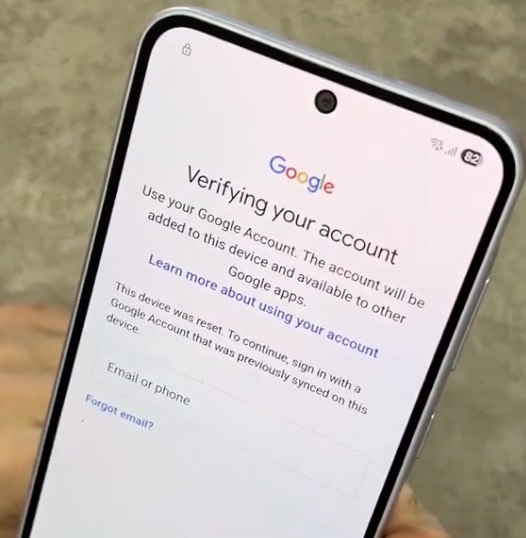
FRP bypass Android 15 lock screen on Samsung Galaxy S25
Android 15 Method Decision Table
Use this table to decide which path is realistic for your case. The right answer depends on brand, model, Android 15 security patch, PC access, available entry points, and legal ownership.
| Method | Best For | Requires PC? | Likely on Android 15? | Main Limitation | Recommended Next Step |
| No-PC browser or accessibility method | Older patch levels or cases where browser, Settings, file manager, or accessibility access still exists | No | Limited | Browser, Settings, or accessibility entry points may be blocked | Check no-PC method limits |
| FRP APK method | Devices that still allow browser access, file download, package installation, and permissions | No | Low to limited | APK install, permissions, and unknown-source settings may be blocked | Understand APK risks first |
| TalkBack or accessibility method | Cases where accessibility shortcuts still expose a useful route | No | Low to limited | TalkBack shortcuts are often patched or redirected on newer builds | Review TalkBack FRP limits |
| ADB-related method | Cases where debugging or authorized access is already available | Sometimes | Case-dependent | Usually not available from a clean locked setup screen | Review ADB FRP limitations |
| Samsung-specific method | Samsung Android 15 / One UI 7 devices | Sometimes | Brand-dependent | Generic Android entry points are often removed, restricted, or redirected | View Samsung FRP guide |
| Tool-based method | Users comparing SamFW, VNROM, AddROM, MTK, SP Flash Tool, or other FRP tools | Depends on tool | Case-dependent | Tools depend on brand, chipset, USB mode, driver setup, firmware state, and patch level | Compare FRP tool alternatives |
| PC-based guided option | Android 12, 13, 14, or 15 cases where manual, APK, YouTube, or TalkBack methods failed | Yes | Often more practical | Compatibility must be checked by brand, model, patch level, USB access, and legal ownership | Compare PC-based options |
Manual, APK, or TalkBack Method Failed on Android 15?
If TalkBack, YouTube, browser, Settings, APK, or file-manager entry points are blocked, do not keep repeating the same steps. The method may depend on an entry point that has already been patched for your device build.
A better next step is to identify why the method failed, check your brand-specific path, and compare whether a no-PC, tool-based, or PC-based route still fits.
Find Why Your FRP Method Failed
|
Compare PC-Based FRP Options
Can You Bypass FRP on Android 15 Without a PC?
A no-PC Android 15 FRP method is only realistic when the device still allows access to a useful entry point. Examples may include limited browser access, file manager access, accessibility menus, keyboard settings, or a brand-specific shortcut that has not been patched.
On many Android 15 builds, especially newer security patches, these entry points are blocked. If the device returns to the setup screen, forces an app update, blocks Settings, or prevents APK installation, the no-PC path is probably not suitable for that device.
When No-PC Methods May Still Be Worth Checking
- The device runs an older Android 15 security patch.
- The browser can still be opened from setup.
- Settings or a system permission screen can still be reached.
- The device is not a heavily patched Samsung One UI 7 model.
- You are comfortable following careful, device-specific instructions from a legal-use guide.
When No-PC Methods Usually Fail
- The YouTube update loop appears and blocks the route.
- Settings does not open from any shortcut.
- APK installation is blocked.
- TalkBack shortcuts no longer expose useful menus.
- The device has repeated failed attempts or unknown patch-level restrictions.
Check Android 15 no-PC method limits
Samsung Android 15 and One UI 7: Why Generic Methods Often Fail
Samsung Android 15 devices, especially those running One UI 7 or later security patches, often behave differently from Pixel, Motorola, Redmi, OPPO, Vivo, or other Android devices. Many generic Android FRP methods depend on entry points that Samsung has removed, restricted, or redirected.
If you are trying to remove Google verification on a Samsung Android 15 device, do not assume that a generic Android method will apply. Start with Samsung-specific information, then decide whether no-PC, tool-based, or PC-based options fit your device.
Common Samsung Android 15 Failure Signs
- The Emergency Information path does not expose useful settings.
- QR or browser routes open only limited pages.
- Samsung Internet opens but cannot launch the required system menus.
- APK installation or restore-based routes are blocked.
- MTP or USB detection works, but the tool cannot complete the process.
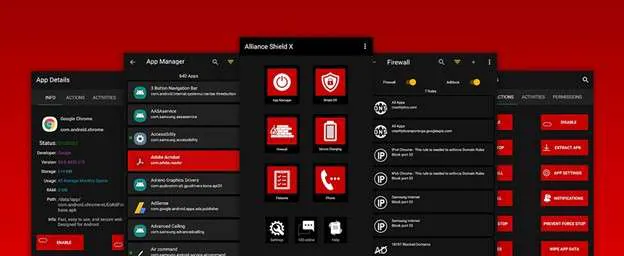
Alliance Shield X is sometimes discussed in Samsung FRP workflows, but availability and results depend on device conditions.
Using Samsung One UI 7?
Samsung Android 15 cases should be checked separately because One UI often blocks generic Android entry points. Start with the Samsung-specific guide, then compare whether a PC-based option fits your device after compatibility checks.
View Samsung FRP Guide
|
Check SamFW Tool FRP Limits
|
Compare Android 15 PC-Based Options
What About FRP Tools, MTP Tools, MTK Tools, and SP Flash Tool?
Tool-based methods can be useful in some cases, but they are not universal. Android 15 compatibility depends on the device brand, chipset, security patch, USB connection mode, firmware state, and whether the tool is updated for newer Android builds.
Be careful with pages that present every tool as a one-click solution. A tool may fail if the device cannot be detected, if MTP is restricted, if the chipset is unsupported, if the security patch is newer than the tool supports, or if the method depends on an entry point that no longer exists.
Before Using Any FRP Tool
- Confirm that you legally own or are authorized to access the device.
- Check the exact brand, model, Android version, and security patch level.
- Do not flash random files that do not match your device model and firmware region.
- Do not trust claims that say one tool works for all Android devices.
- Compare tool limitations before downloading or running anything.
Compare FRP Tool Alternatives
|
VNROM FRP Bypass Limits
|
AddROM FRP Bypass Limits
|
MTK FRP Bypass Limits
Why “Settings Not Opening” or “YouTube Update” Happens
The “Settings not opening” issue and “YouTube update” loop usually mean the method depends on an outdated entry point. Android 15 may block the intent that opens Settings, restrict the browser route, or force the user back to the setup process.
When this happens, repeating the same TalkBack, YouTube, keyboard, browser, or APK method rarely helps. The better path is to identify why the method failed and choose a route that matches your device scenario.
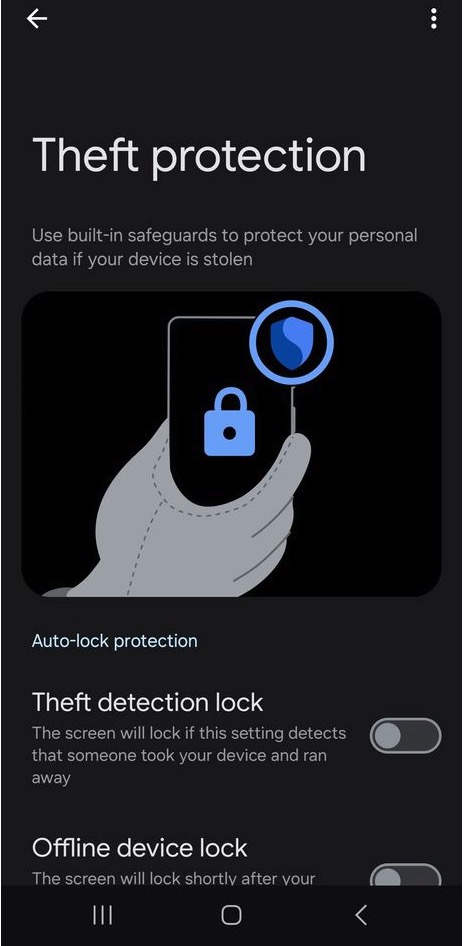
Android 15 security features can make older FRP entry points less reliable.
How to Choose the Right Android 15 FRP Path
Do not choose a method only because it appears in a video or download page. Choose based on your device details and current stuck screen.
Choose a No-PC Method If:
- You do not have a Windows PC.
- The device still allows browser, Settings, file manager, or accessibility access.
- You are using a device or patch level where no-PC entry points are still possible.
- You understand that success varies by patch level and device condition.
Choose a PC-Based Option If:
- You have a Windows PC and USB cable.
- Manual, APK, YouTube, or TalkBack methods already failed.
- The device runs Android 12, 13, 14, or 15.
- You can confirm the brand, model, Android version, and legal ownership.
- You want a more structured workflow instead of trying random files.
Use the Solution Finder If:
- You do not know the model, Android version, or security patch.
- You have tried multiple methods and the device is still locked.
- You do not have a PC but the phone runs a newer Android version.
- The device shows bootloop, recovery mode, fastboot mode, or unusual errors.
- You are not sure whether your case is FRP, screen lock, account lock, or firmware damage.
Start FRP Solution Check
Common Android 15 FRP Pitfalls to Avoid
- Do not repeat the same failed method. If the entry point is patched, repetition usually will not change the result.
- Do not install random APKs. Many APK routes fail on Android 15 and may create additional security or privacy risks.
- Do not flash mismatched firmware. Wrong files can cause bootloops, soft-bricks, or loss of device functionality.
- Do not trust universal claims. No single FRP method works on every Android 15 phone.
- Do not continue if you are not authorized. UnlockLab only supports legal owners and authorized users.
Related Brand Guides
If you know the device brand, use a brand-specific path instead of a generic Android 15 method:
- Samsung FRP bypass guide
- Xiaomi / Redmi FRP bypass guide
- Motorola FRP bypass guide
- OPPO FRP bypass guide
- Vivo FRP bypass guide
Related Android Version Guides
Android 15 is usually more restrictive than older versions. If your device is not actually running Android 15, check the matching version guide instead:
- Android 14 FRP bypass limits
- Android 13 FRP bypass guide
- Android 12 FRP bypass guide
- Android 11 FRP bypass guide
FAQ
Is Android 15 FRP bypass still possible?
It depends on the device brand, model, Android 15 patch level, available entry points, PC access, and legal ownership. Some older or less restricted cases may still support manual paths, while newer patched devices often require a different approach.
Can I bypass Android 15 FRP without a PC?
Sometimes, but only when a usable no-PC entry point still exists. If browser, Settings, TalkBack, APK installation, or file-manager routes are blocked, the no-PC path is usually not realistic.
Why does the YouTube method fail on Android 15?
The YouTube method often fails because newer Android 15 patches force updates, block browser routing, or prevent the method from opening Settings.
Are FRP APK methods safe on Android 15?
APK methods are limited on Android 15 because installation routes, unknown-source permissions, and setup-screen access are often restricted. They also carry security risks if downloaded from untrusted sources.
What should I do if my Samsung Android 15 device is locked?
Samsung Android 15 and One UI 7 devices often block generic Android methods. Start with the Samsung FRP bypass guide, then compare no-PC, tool-based, or PC-based options based on your device details.
When does a PC-based FRP option make sense?
A PC-based option may make sense when manual, APK, YouTube, TalkBack, or browser methods have already failed, especially on Android 12 or later. Compatibility must still be checked by brand, model, patch level, USB access, and legal ownership.
What if I do not know my Android version or model?
Do not guess. Use the FRP Solution Finder and choose “Not sure” when needed. You can also check the Android version guide before choosing a method.
Is it legal to remove FRP from a second-hand phone?
It can be legal if you own the device or are authorized to access it. Unlocking a lost, stolen, found, or unauthorized device is not supported.