Redmi FRP Bypass Guide (MIUI 14 / HyperOS | Qualcomm & MTK | 2026)
A technician-tested Redmi FRP bypass guide for MIUI 14 and HyperOS, covering Qualcomm and MTK test-point methods, PC tools, and reliable solutions for modern Xiaomi security patches.
Staring at a “Verify your account” screen on a Redmi phone after a reset is incredibly frustrating. Your device feels useless, and the situation gets worse when you discover that most online tutorials are outdated, promoting software tricks like TalkBack that no longer work on MIUI 14 or HyperOS.
This guide was created to fix that. We’re not going to give you a theoretical overview; we are going to walk you through the actual, hardware-based steps that technicians use. This guide provides a clear, tested procedure for a Google FRP bypass on your Redmi device depending on its specific chipset (Qualcomm or MediaTek).
Expert Insight: From Our Lead Technician
“The number one reason users fail a Redmi FRP bypass is misidentification. They spend hours trying to fix a Google FRP lock when they’re actually facing a Xiaomi Mi Account lock. The screens look different, and the tools are not interchangeable. Confirming which screen you see is the most critical first step to success.” — Alistair Finch, Lead Technician
Step 1: Is It Google FRP or a Mi Account Lock?
Before you do anything else, you must correctly identify the security screen blocking your access. An incorrect diagnosis is the most common reason for failure. Google’s Factory Reset Protection (FRP) and Xiaomi’s Mi Account lock are entirely separate systems, and the bypass methods are completely different.
Google FRP Lock (Factory Reset Protection)
-
When it Appears: After connecting to Wi-Fi during the initial setup.
-
What it says: “Verify your account” and “This device was reset.” It asks for a Google email and password.
-
The Solution: This guide covers this specific bypass.
Xiaomi Mi Account Lock
-
When it Appears: Usually right after boot, showing a large padlock icon.
-
What it says: “This device is locked” or “Associated with an existing Mi Account.” It asks for a Xiaomi Cloud password.
-
The Solution: This requires a different procedure (Mi Unlock Tool), not the FRP steps below.
Step 2: Choosing Your Path (The Manual Route vs. An Automated Tool)
Once you confirm you have a Google FRP lock, you have two main options: a manual, PC-based procedure that requires technical skill, or a dedicated software tool that automates the process.
| Factor | Manual Hardware Method (Free) | Professional Tool (DroidKit) |
| Success Rate | Moderate (Dependent on correct files) | Very High (Updated for HyperOS) |
| Time Cost | 1-3 Hours (Research & Setup) | 5-15 Minutes |
| Disassembly? | YES (Must open phone back cover) | NO (USB connection only) |
| Technical Skill | High (Drivers, EDL Mode, Partitioning) | Low (Guided interface) |
| Safety Risk | High (Risk of shorting hardware) | Very Low |
⚠️ Recommendation: The manual method below requires opening your phone to short-circuit the motherboard (Test Point). If you’re uncomfortable, use an automated PC method instead (general FRP computer workflow: Bypass FRP with PC).
Step 3: The Manual Bypass – A Detailed, Chipset-Specific Guide
The most reliable PC-based solutions for an MIUI FRP Bypass on Android 13 or newer depend on your phone’s chipset (SoC). Redmi devices primarily use hardware from Qualcomm, MediaTek (MTK), or Unisoc. You must first identify your chipset, then use the correct tools and procedure for that specific hardware.
For example, many entry-level Redmi models like the Redmi A series are powered by MediaTek processors, which require a different flashing tool compared to Qualcomm-based devices. If you’re specifically dealing with a MediaTek-powered model such as the Redmi A5, you can refer to this step-by-step guide for a practical walkthrough: https://www.unlocklab.org/redmi-a5-frp-bypass.htm
First, identify your phone’s chipset using this table:
| Model Series | Common Chipset |
| Redmi Note 10 | Qualcomm SM6115 |
| Redmi Note 11 | Qualcomm SM6225 |
| Redmi Note 12 4G | Qualcomm SM6225 |
| Redmi Note 12 5G | Qualcomm SM4375 |
| Redmi 12C | MediaTek Helio G85 |
| Redmi A1 / A2 | MediaTek Helio A22 |
Tip: Google your specific model to confirm if it is “Qualcomm” or “MTK”.
For Qualcomm CPUs: Using EDL Mode & QFIL
This procedure forces the phone into Emergency Download Mode (EDL), allowing QFIL to erase the hidden FRP partition directly.
- Download and Install Drivers & Tools:
- Download the official Qualcomm HS-USB QDLoader 9008 drivers.
- Download and install QPST, which includes the QFIL tool you will need.
- Enter EDL Mode (Test Point Method): This is the most difficult step.
- Power the device off completely and disconnect the battery to prevent any accidental shorts.
- Carefully open the device’s back panel. You will need to find two small, specific metallic “test points” on the motherboard. Their location is unique to each model.
- Pro Tip: Search online for “[Your Model] EDL test point”. You will find diagrams showing the exact location.
- Using metal tweezers, create a connection by touching both points simultaneously. While holding the connection, plug the USB cable from your PC into the phone. Your PC’s Device Manager should now recognize the phone as a “QDLoader 9008” port.
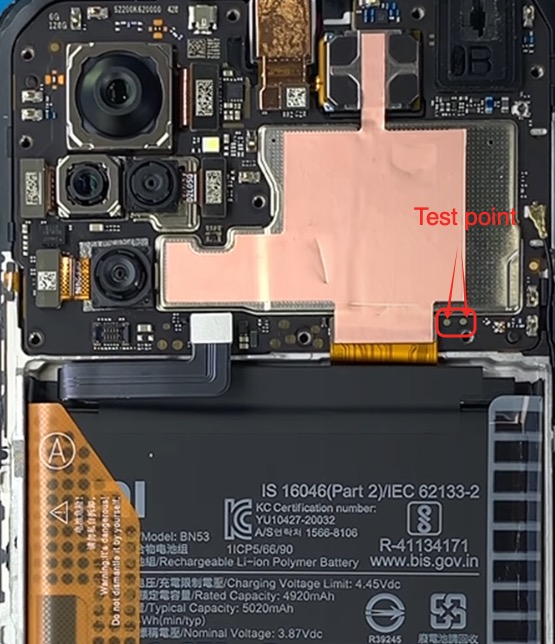
Redmi Note 10 Test point
- Perform the Bypass with QFIL:
- Open QFIL. It should automatically detect the QDLoader port.
- Select “Flat Build.”
- Under “Programmer Path,” you must load a compatible “firehose” file for your model (e.g.,
prog_firehose_ddr.elf). This file is usually found within the official firmware package for your phone. - Go to “Tools” -> “Partition Manager.” A list of the phone’s partitions will appear.
- Find the partitions named
frpandpersist. Right-click on each one, select “Manage Partition Data,” and then choose “Erase.” - Once done, close Partition Manager, disconnect the phone, reconnect the battery, and power it on. The FRP lock will be gone.
For MediaTek (MTK) CPUs: Using Auth Bypass & SP Flash Tool
If your Redmi has an MTK chipset, the process uses different tools and requires bypassing modern security features.
1. Download and Install Drivers & Tools:
- Install the latest MTK VCOM drivers on your computer.
- You will need a tool capable of performing an “Auth Bypass” on modern MTK chips, such as the latest version of SP Flash Tool combined with a bypass utility, or a professional tool like UnlockTool.
2. Connect in BROM Mode and Bypass:
- Power off the phone completely.
- Launch your chosen MTK tool and load the appropriate scatter file or select the “FRP Erase” function.
- First, execute the “Auth Bypass” or “Disable Auth” function in your tool.
- Once the tool says it’s waiting for the device, hold both the Volume Up and Volume Down buttons on your phone and connect it to the PC.
- The tool will detect the phone in BROM mode and perform the FRP erase operation automatically.
3. Erase FRP via SP Flash Tool
-
Open SP Flash Tool. Load the Scatter File for your specific model.
-
Go to the Format tab -> Manual Format Flash.
-
Open your Scatter file in Notepad, search for
frp, and copy thelinear_start_addrandpartition_size. -
Paste these hex codes into SP Flash Tool and click Start.
Why ‘No PC’ APK Methods Fail on Modern MIUI & HyperOS
You will find countless videos promoting FRP bypass methods that don’t need a computer, often using glitches in TalkBack or “Second Space.”
These methods are almost universally patched. Google and Xiaomi have systematically closed these loopholes in MIUI 14 and HyperOS. Any attempt to perform a HyperOS FRP bypass using an old accessibility exploit will likely result in a dead end. The hardware-level methods described above (or professional tools) are the only consistent solutions for 2026.
Troubleshooting Common Bypass Errors
Even with the correct procedure, you might encounter errors. Here are solutions for the most common ones.
Qualcomm Error: ‘Sahara Fail’ or ‘Firehose Mismatch’
This error signals a communication failure between QFIL and the phone.
- Cause: The programmer (“firehose”) file you are using is not compatible with your phone’s specific model and firmware version.
- Solution: You must find the exact firehose file for your device model and region. Using a generic firehose on a new device is the most common cause of this error.
MTK Error: ‘BROM Auth Fail’ or ‘Authentication Error’
This happens when you try to service a modern MTK device without disabling its Secure Boot.
- Cause: The phone’s security is rejecting the connection from an unauthorized tool.
- Solution: You MUST use a tool or utility that explicitly supports “Auth Bypass” for your MTK chipset. An older version of SP Flash Tool will not work on its own.
Driver Not Detected or ‘Port’ Issues
This is the most fundamental problem. If the PC cannot see the phone correctly, no software can help.
- Cause: Incorrect drivers, conflicting old drivers, or Windows Driver Signature Enforcement blocking them.
- Solution: Uninstall all previous mobile device drivers. Restart your PC. Download a fresh, verified driver pack for your phone’s chipset. You may need to disable driver signature enforcement in Windows before installation.
Frequently Asked Questions
Do I need to downgrade the firmware or use a combination file?
No. For any modern Redmi device running MIUI 12 or higher, attempting to downgrade the firmware is extremely risky. Xiaomi’s anti-rollback protection will most likely brick your device. The concept of combination firmware is an obsolete technique. The PC-based methods in this guide work on current firmware.
Where can I safely download drivers and tools?
Always download tools from official developer websites (like QPST) or trusted communities like XDA-Developers. Avoid random links from video descriptions, as these are common sources of malware.
Will removing FRP erase my data or void my warranty?
FRP only appears after a factory reset, so your personal data is already gone. As for the warranty, any procedure that requires opening the device (like the test point method) will void it.
Is it legal to bypass FRP on a second-hand phone?
Yes. If you are the legitimate owner of the device, you have the right to access it. FRP is an anti-theft measure. If you have proof of purchase, you are legally entitled to bypass a lock left by a previous owner. The best first step, if possible, is always to contact the seller and ask them to remove their Google account remotely.
Why is my computer not recognizing the device?
This is almost always a driver issue. Ensure you have uninstalled all old drivers, rebooted your PC, and installed the single, correct driver package for your phone’s chipset. Using a “charge-only” USB cable can also prevent a data connection; always use a high-quality data cable.
A Clear Method to Regain Access to Your Redmi
Facing a Google FRP bypass on a Redmi device is a technical challenge. By correctly identifying your chipset and using hardware-level tools like QFIL or SP Flash Tool, you have a realistic method for regaining control.
However, the manual process is complex and carries risks. For a solution that automates everything—from driver installation to the final bypass—and removes the risk of error, consider DroidKit. It is designed to resolve FRP locks quickly, offering a reliable and secure tool to solve this problem efficiently.
More Related Articles
- FRP Bypass Android 12: Your Tested Guide for 2026
- The Proven Method to bypass FRP on Android 14 in 2026
- How to Use Easy Flashing FRP Bypass 8.0 APK