Samsung FRP Bypass Guide (2026): S24, A-Series & Tablet Solutions
Quick Summary
- The Tool You Need: We recommend the SamFw FRP Tool (Free Version 4.x or higher) for most users. It handles both standard Knox unlocks and MediaTek hardware exploits.
- Identify Your Device Class: A generic “Samsung FRP bypass tool all models” does not exist. You must choose a mode within the software based on your device: MTP Mode for Tablets, Brom Mode for Budget A-series, or ADB Mode for Flagships.
- Avoid Dangerous Downgrades: Attempting to downgrade the OS on a Samsung S24+ with Android 14 can trip the Knox security bit or brick the device.
- Hardware Matters: Tablets like the Tab A8 cannot use the
*#0*#dialer method because they lack telephony hardware; you must use the “Open Browser” function in the software instead.
Her frustration—and likely yours—stems from a lack of specific software instructions. Generic guides often say “Launch the tool” without telling you which tool or where to click. This guide bridges that gap. We will walk you through the exact software steps using the SamFw FRP Tool (a verified, free utility) to remove Google account Samsung S24/S20 Android 14 and unlock dialer-free tablets.
Before You Start: Prerequisites & Software Setup
- Download the Samsung USB Drivers:
- Install the official Samsung USB drivers for Windows. This ensures your PC recognizes the device as a modem/ADB interface rather than just a charging device.
- Download the SamFw FRP Tool:
- Search for and download the latest version of SamFw Tool. (Note: We use this tool because it combines Samsung-specific commands with MediaTek exploits in one interface).
- Safety Note: Always disable your antivirus temporarily, as security software often flags FRP tools as false positives due to their obfuscated code.
- Cable Check:
- Use a high-quality USB-C data cable. If the tool says “Device not found,” 90% of the time it is a faulty cable.
Decision Guide: Which Mode Do I Choose?
Once you have the software open, you cannot just click random buttons. You must match your device to the correct “Tab” in the software.
![Image: A clean comparison chart. Column 1: Device Type. Column 2: Software Tab to Click. Column 3: Specific Button Function. Rows: Flagship (Samsung Tab -> Remove FRP), Tablet (Samsung Tab -> MTP Launch), Budget (MediaTek Tab -> Brom Reset). Alt-text: Comparison chart showing which SamFw tool buttons to use for Samsung FRP bypass tool all models.]
| Device Class | Example Models | Software Tab | Operation Mode |
| Flagship | S24+, S23, S20 | Samsung | *#0*# Test Mode (ADB) |
| Tablet | Tab A8, Tab A7 Lite | Samsung | MTP Mode (Open Browser) |
| Budget | Galaxy A12, M12, A03s | MediaTek | Brom Mode (Hardware Reset) |
Method 1: The “No-Dialer” Solution for Tablets (Tab A8/A7 Lite)
Unlocking Samsung tablets like the Tab A8 requires a method that does not rely on the standard telephony dialer. Since these devices lack call hardware, #0# cannot be dialed.
For A7 Lite users, the dedicated method is available here: 👉 Samsung Galaxy A7 Lite FRP Bypass
Step-by-Step Software Instructions
- Connect the Tablet: Ensure the Tab A8 is on the “Welcome/Start” screen and connect it to your PC.
- Select MTP Mode: In the SamFw Tool, stay on the Samsung tab. Look for a sub-tab or button labeled “MTP” or “App Manager”.
- Trigger the Browser: Click the button labeled “Open Browser (YouTube)” or “Open Galaxy Store”.
- Watch the Tablet Screen: A pop-up will appear on your tablet asking to “View.” Tap it. This opens the browser, bypassing the initial lock screen.
- The Bypass: Once in the browser, go to a trusted APK download site (like Galaxy Store) to install a secondary launcher or settings shortcut. This gives you access to the device settings where you can add a new Samsung Account, effectively overwriting the FRP lock.
This strategy succeeds because it circumvents the missing Tablet dialer by injecting a command through the media transfer protocol (MTP), which does not require a SIM card or phone app.
Method 2: The Hardware Exploit for Budget Models (Samsung A12 & M33)
Budget models like the Galaxy A12 and M33 usually run on MediaTek chipsets.
For deeper A12-specific instructions, see: Samsung Galaxy A12 FRP Bypass Without PC
Critical Note: Do not use the “Samsung” tab for these phones. You must use the “MediaTek” tab.
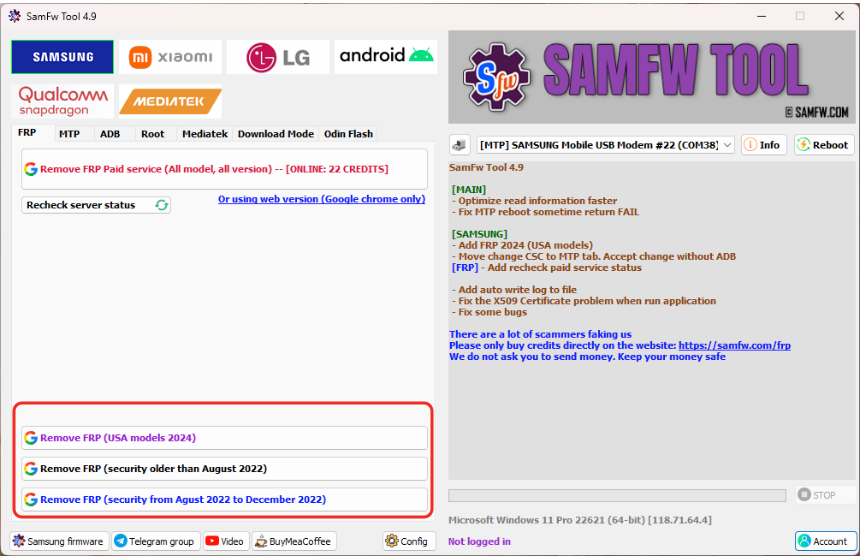
Professional tool for Sasmung Google account verification bypass
Step-by-Step MediaTek Instructions
- Power Off Completely: Turn the Galaxy A12 off and wait 10 seconds.
- Prepare the Software:
- Open SamFw Tool.
- Click the MediaTek tab (usually found in the top navigation bar).
- Click the button labeled “Remove FRP” or “Reset FRP (Brom)”.
- The Connection Trick:
- The software will now say “Waiting for device…”
- Hold both Volume Up + Volume Down buttons on your phone simultaneously.
- While holding the buttons, plug in the USB cable.
- Execution: The software should detect the MediaTek pre-loader port immediately. You will see a progress bar flash on the PC screen. Once it says “Success” or “OK,” let go of the buttons. The phone will reboot unlocked.
Method 3: The Flagship Challenge (Samsung S24+ vs. S20)
The procedure to remove Google account Samsung S20/S24 Android 14 is the most difficult because modern Knox Vault security protects these devices. For OS-level background changes, reference: 👉 Android 14 FRP Bypass
Scenario A: Legacy Flagships (S20, S10, Note 20)
If your device is running Android 13 or lower, use the standard method:
- Open SamFw Tool -> Samsung Tab.
- Click “Remove FRP (Security Aug 2023)”.
- On the phone, tap “Emergency Call” and dial
*#0*#. - Accept the “Allow USB Debugging” prompt on the phone screen when the tool triggers it.
Scenario B: Modern Flagships (S24+, S23 on Android 14)
On Android 14, Samsung has patched the *#0*# exploit on many devices.
- Attempt the Standard Method: Try the steps in Scenario A first. Some carrier-specific models still allow it.
- If That Fails: You cannot downgrade the firmware due to the Knox security bit.
- The Solution: If the tool fails with “Exploit Failed,” you generally have two options:
- Change CSC: Use the SamFw “Change CSC” function to switch the carrier region to one that might have looser security (advanced users only).
- Server Service: For an S24+ fully updated to the latest patch, free tools often hit a wall. You may need to use a paid “Remote Unlock Service” where a technician connects to your USB port over the network to apply a specialized signature key.
Why “One-Size-Fits-All” Tools Fail
Universal unlock tools fail because they treat an S24+ connection the same as an A12 connection. As you have seen above, the A12 requires the MediaTek tab, while the S24+ requires the Samsung ADB tab.
If you use the wrong tab, the software sends the wrong command language. The A12 will simply charge without unlocking, and the S24+ will reject the command as unauthorized. Understanding the chipset architecture (Exynos vs. Snapdragon vs. MediaTek) is the key to selecting the right button in the software.
Frequently Asked Questions
The software is stuck on “Sending ADB Exploit.” What do I do?
This is common on S24/S23 models with Android 14. It means the security patch has blocked the automatic enabling of USB debugging. Try the “Remove FRP (2024)” method in the tool. If that fails, you likely need a paid server unlock, as the free exploit is patched on your specific firmware version.
Where can I download the tool you mentioned?
We recommend searching for the official SamFw website or UnlockTool (a paid alternative). Always verify the domain to avoid download sites filled with ads. We do not host the files directly to ensure you always get the latest version from the developer.
My Tab A8 doesn’t show the “View” popup when I click “Open Browser.”
This usually happens if the “Samsung Android USB Driver” is missing or outdated. Reinstall the drivers, reboot your PC, and try a different USB port (preferably a USB 2.0 port).
Can I use the MediaTek method on an S24?
No. The S24 uses a Snapdragon or Exynos processor. Using the MediaTek tab on a Snapdragon device will do nothing because the hardware doesn’t know how to “listen” for those specific commands.
Conclusion
Successfully bypassing the FRP lock is not about guessing; it is about matching the software command to your hardware reality.
- For Tablets (Tab A8): Use the Samsung Tab -> MTP -> Open Browser method to bypass the missing dialer.
- For Budget (A12): Use the MediaTek Tab -> Brom Mode method for a fast, hardware-level reset.
- For Flagships (S24+): Attempt the Samsung Tab -> Remove FRP method, but be prepared to seek professional server-based help if the Android 14 security patch is too new.
You now have the specific software steps and the logic needed to unlock your device. Download the drivers, open the correct tab for your model, and restore your device to full functionality.
More Related Articles
- How to bypass FRP on Samsung S20
- Bypass FRP on Samsung A12 Without PC [2026 Guide]
- How to Perform a Galaxy A14 FRP Bypass