Samsung Galaxy Tab A7 Lite FRP Bypass Guide (MTK | Android 11–13 | 2026)
A tested FRP bypass guide for the Samsung Galaxy Tab A7 Lite covering MTK BROM mode, driver setup, and the reliable PC-based method for Android 11, 12, and 13.
Finding a great deal on a second-hand Samsung Galaxy Tab A7 Lite, only to discover the previous owner’s Google account locks it, is a deeply frustrating experience. This Factory Reset Protection (FRP) lock can make a perfectly good device feel like an expensive paperweight. You have probably spent hours trying common solutions you found online—like the #0# test mode or various TalkBack workarounds—only to find they simply do not work on this tablet (as explained in the updated FRP Bypass with TalkBack guide).
This isn’t your fault. Those guides are often outdated or designed for different Samsung devices.
This guide provides a direct, reliable Galaxy A7 Lite FRP bypass solution that we have personally tested on the Wi-Fi (SM-T220) and LTE (SM-T225) models running Android 11, 12, and 13. We will explain exactly why those other methods fail and give you the correct, hardware-specific procedure that requires a Windows PC.
Why Standard Samsung FRP Methods Fail on the A7 Lite
If you have tried to bypass the FRP lock using methods designed for Samsung phones (like the S22 or A53), you have run into a hardware problem, not a software one. Many Samsung models require different FRP methods depending on whether they run Exynos, Snapdragon, or MediaTek hardware. For a broader comparison of Samsung device classes and their supported FRP techniques, you can check our Samsung FRP Bypass Guide (2026).
The Galaxy Tab A7 Lite is not built like most other Samsung devices. Instead of a typical Samsung Exynos or Qualcomm Snapdragon processor, the A7 Lite is powered by a MediaTek Helio P22T chipset (MTK).
This fundamental architectural difference is why software-only workarounds are ineffective. This is similar to the challenge owners face with the Samsung Galaxy Tab A8, which uses a Unisoc chipset and also requires specific, non-standard bypass methods.
There is no diagnostic mode accessible via the emergency dialer on the A7 Lite. Instead, MTK devices have a hardware-level service mode called BROM (Boot ROM) mode. Gaining access to this mode is the key to unlocking your device.
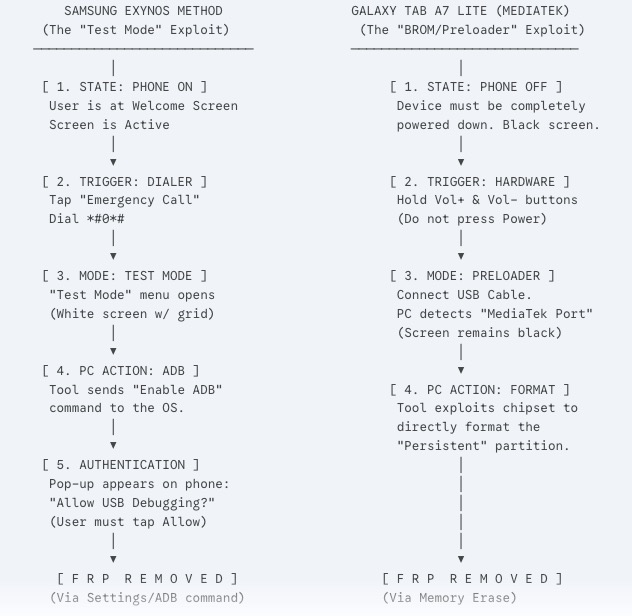
Exynos (Test Mode) vs. MediaTek (BROM/Preloader)
The Only Reliable Method for Your A7 Lite
To save you more time and frustration, it is important to select the correct procedure from the start. For the Galaxy Tab A7 Lite, especially with recent security updates, the choice is clear.
| Method | Success Rate | Time Cost | Technical Skill Required | Safety Risk | Best For |
| On-Device (No PC) | Near 0% on Android 12/13 security patches | High (wasted) | Low | Low | Unpatched Android 11 devices only; not recommended. |
| PC-Based (MTK Tool) | Over 95% with correct drivers and tool | Low-Medium | Medium | Low | All SM-T220 & SM-T225 models on all Android versions. (Recommended) |
As the table shows, attempting an on-device bypass is not a practical use of your time. While our general guides for FRP bypass on Android 12 or Android 13 offer solutions for many phones, the A7 Lite’s unique hardware blocks these standard exploits. The PC-based solution is the way forward (see our general workflow in the Bypass FRP with PC guide).
Step-by-Step Guide: The PC Method for SM-T220 & SM-T225
This procedure is the most reliable solution for an SM-T220 FRP bypass and for all other A7 Lite models. We will walk you through every step, including providing safe resources for the necessary tools.
Before You Begin: A Quick Checklist
Get these items ready to ensure a smooth process.
- A Windows PC (10 or 11 recommended)
- A good quality USB-C data cable
- SamFw FRP Tool v4.8.1 or newer: Downloaded from the official SamFw website. This is a trusted and free tool that works perfectly for this task.
- MTK USB Drivers: Download the
MTK_USB_All_v1.0.8driver pack. We recommend searching for this specific file name on a trusted source like the GSM-Forum. - Antivirus Temporarily Disabled: Disable your security software for this process to prevent it from incorrectly blocking the tool or drivers.
Step 1: Prepare Your PC and Software
We understand that downloading tools can be the most stressful part of this process. Vague instructions like “find a tool online” are not helpful and can expose you to malware. Here is exactly what to do.
- Download and Extract the Tools: Create a folder on your desktop. Download the SamFw FRP Tool and the MTK Driver pack into this folder. Extract both zip files.
- Install MTK Drivers: This is the most critical step. Your PC must be able to recognize the tablet in its Preloader mode. Go to the dedicated Troubleshooting Guide section below and complete the driver installation before you continue.
- Launch SamFw FRP Tool: Open the extracted SamFw tool folder and run the application.
Step 2: Connect the Tablet in BROM/Preloader Mode
- Power Off the Tablet: Make sure the Galaxy Tab A7 Lite is completely off.
- Prepare the Tool: In the SamFw Tool, click on the [MTK] tab at the top.
- Enter BROM Mode: Press and hold both the Volume Up and Volume Down buttons on the tablet at the same time.
- Connect: While holding them down, connect the tablet to your PC with the USB-C cable.
- Pro Tip: The screen should stay black. If you see a battery charging icon or the Samsung logo, you are NOT in BROM mode. Unplug, power off, and try again.
Step 3: Remove the FRP Lock
- Execute the Command: Once the tablet is connected in BROM mode, click the [Erase FRP] button in the SamFw Tool.
- Watch the Log: The tool’s log window will show text confirming it has found the device on a COM port and is wiping the FRP partition. The entire process is incredibly fast, often taking less than 10 seconds.
- Disconnect and Reboot: Once the log shows a success message, you can disconnect the USB cable and power on your tablet. The first boot might take a few minutes longer than usual. When it’s done, proceed through the setup wizard—the Google account verification screen will be gone.
SamFw software tool for the Galaxy A7 Lite FRP bypass
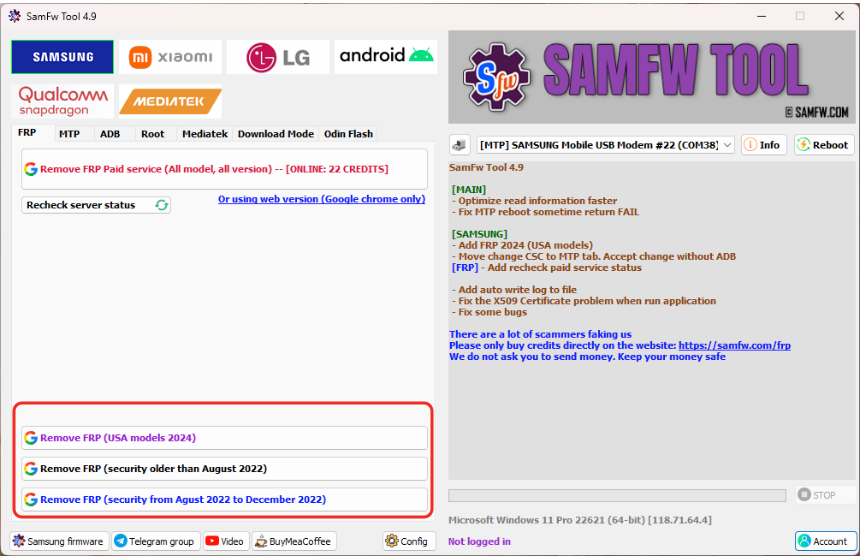
Troubleshooting Guide: Installing MTK Drivers Correctly
Nearly every failure with this method is caused by a driver issue. Your computer needs specific MTK Preloader drivers to communicate with the Helio P22T chipset, not the standard Samsung USB drivers used for other tasks.
Step 1: Disable Driver Signature Enforcement in Windows
Windows often blocks the installation of the necessary unsigned drivers. You must temporarily disable this security feature to proceed.
- Click the Start Menu, hold down the Shift key, and click Restart.
- Your PC will boot into the Advanced Startup menu. Navigate to Troubleshoot > Advanced options > Startup Settings and click Restart.
- After the next reboot, you will see a list of options. Press the 7 or F7 key to select “Disable driver signature enforcement.”
Your PC will now boot one time in a special mode that allows unsigned driver installation. This setting is temporary and will revert on the next normal restart.
Step 2: Install & Verify
-
Run the installer in your
MTK_USB_All_v1.0.8folder. -
Open Device Manager on your PC and expand “Ports (COM & LPT)”.
-
Power off your A7 Lite, hold both volume buttons, and plug it in.
-
Success: You should see “MediaTek PreLoader USB VCOM Port” appear for a few seconds.
- Fix for Yellow Exclamation Mark: If it appears as “CDC Serial” or has a warning icon: Right-click it > Update driver > Browse my computer > Let me pick… > Select MediaTek PreLoader USB VCOM Port.
Common Problem: Yellow Exclamation Mark or “CDC Serial” Error
If you see a device with a yellow warning icon or it appears as “CDC Serial,” Windows has not assigned the correct driver. Here is how to fix it manually:
- Right-click on the problematic device in Device Manager and select “Update driver.”
- Choose “Browse my computer for drivers.”
- Select “Let me pick from a list of available drivers on my computer.”
- If you see “MediaTek PreLoader USB VCOM Port” in the list, select it and click Next. If not, click “Have Disk…”
- Click “Browse…” and navigate to the folder where you extracted the MTK drivers. Go into the
MTK_USB_All_v1.0.8folder, then find the correct subfolder for your system (e.g.,x64for 64-bit Windows) and select the.inffile. - Click OK and then Next to manually install the correct VCOM port driver.
Frequently Asked Questions
Why doesn’t the Samsung #0# or TalkBack method work on my A7 Lite?
Those are software exploits for devices using Samsung’s Exynos or Qualcomm chipsets. The A7 Lite’s MediaTek (MTK) architecture is different, so those entry points do not exist, especially on updated Android 12 and 13 firmware.
Can I bypass FRP on Android 12 or 13 without a PC?
For the Galaxy Tab A7 Lite, it is extremely unlikely. The security flaws needed for non-PC methods have been fixed by Google and Samsung. The PC-based method that communicates directly with the MTK hardware is the only reliable technique for recent Android versions.
How do I confirm if my A7 Lite is T220 or T225?
The model number (e.g., SM-T220) is printed in small text on the back of the tablet. The SM-T220 is the Wi-Fi model, and the SM-T225 is the LTE model. The FRP removal steps in this guide are identical for both.
How do I avoid bricking my tablet?
Bricking (making the device unusable) is a very low risk with this specific FRP removal method. The risk is in flashing incorrect firmware. To stay safe, only use the recommended tools from their official sources and do not disconnect the tablet during the short FRP removal process. Do not attempt any EDL/test point methods unless you are an experienced technician, as that involves opening the device.
Conclusion: Regain Full Access to Your A7 Lite
The key to solving the Galaxy A7 Lite FRP bypass challenge is working with its unique MediaTek hardware, not against it. The frustration of trying ineffective methods meant for other phones is now behind you. By recognizing that a PC-based solution with the correct MTK drivers is required, you have already cleared the biggest hurdle. This hardware-specific procedure empowers you to regain control of your tablet safely and efficiently.
More Related Articles
- How to bypass FRP on Samsung S20
- Bypass FRP on Samsung A12 Without PC [2026 Guide]
- How to Bypass Samsung Galaxy M33 FRP