Vivo Y20 FRP Bypass: Android Version Limits, Qualcomm Notes, and Safer Next Steps
Vivo Y20 FRP bypass methods depend on the exact model, Android version, Funtouch OS build, security patch, chipset, PC access, and available setup-screen entry points. This guide explains why no-PC, APK, and EDL-related methods may fail and how to choose a safer next step.
Vivo Y20 FRP bypass methods depend on the exact model, Android version, Funtouch OS build, security patch, chipset, PC access, and current Google verification screen. This guide explains why many no-PC, APK, and hardware-level methods fail, what to check first, and how to choose a safer next step without following risky test-point or random file instructions.
Quick Summary
- Vivo Y20 is not a universal FRP case. Model variants, Android version, Funtouch OS version, and patch level can change which methods are realistic.
- No-PC methods may work only in older or less restricted cases. They depend on browser, Settings, app-link, share-menu, or accessibility entry points that may already be blocked.
- APK routes are limited. If APK download, package installation, unknown sources, or Settings access is blocked, trying another APK mirror usually will not fix the real issue.
- EDL / test-point methods are advanced repair procedures. They can involve hardware access, chipset tools, and partition-level risk, so they are not suitable for most users.
- Recommended next step: confirm the lock type, model, Android version, and PC access before choosing a method. You can also Start FRP Solution Check.
Legal Use Notice
UnlockLab provides FRP troubleshooting information only for users who legally own the device or are authorized to access it. We cannot help unlock stolen, lost, found, or unauthorized devices. If you cannot confirm legal ownership or authorization, do not continue. Read the Legal Use Notice before using any FRP guide.
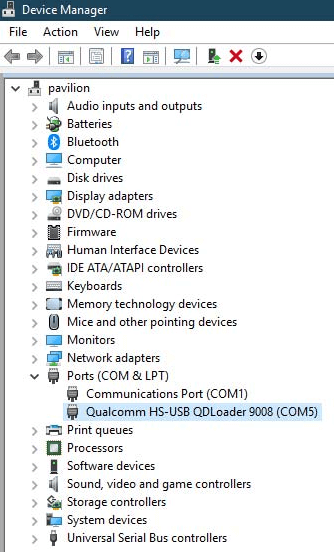
Vivo Y20 FRP troubleshooting may involve PC detection checks, but hardware-level methods should be handled with caution.
First Check: Is This a Google FRP Lock?
A Vivo Y20 FRP case usually appears after a factory reset and asks you to verify a previously synced Google account. This is different from a screen lock, SIM lock, bootloop, firmware failure, or carrier issue.
If the device only asks for a PIN, pattern, or password, it may not be a Google FRP case. If the phone is stuck in fastboot, recovery, or bootloop, diagnose the system issue before choosing an FRP method.
Vivo Y20 Method Decision Table
Use this table to decide which path is realistic. The right method depends on model variant, Android version, security patch, available entry points, PC access, and legal ownership.
| Method | Best For | Requires PC? | Likely Fit on Vivo Y20? | Main Limitation | Recommended Next Step |
| No-PC browser / Settings route | Older builds where setup-screen entry points still open useful screens | No | Limited | Browser, Settings, share-menu, or app-link routes may be blocked | Check no-PC method limits |
| FRP APK route | Cases where browser access, APK installation, and permissions are still available | No | Low to limited | APK install, unknown sources, and setup-screen permissions may be blocked | Understand APK risks first |
| Vivo / Funtouch OS method | Users who know the Vivo model, Android version, and current setup-screen state | Depends | Case-dependent | Funtouch OS behavior, region, patch level, and app access can change the result | View Vivo FRP guide |
| Qualcomm / EDL-related repair path | Advanced repair environments with proper tools, drivers, and device ownership verification | Yes | Advanced only | Hardware access, driver issues, and partition-level mistakes can damage the device | Use only with professional repair knowledge |
| PC-based guided option | Repeated failures, newer security patches, or users who need a structured compatibility check | Yes | Often more practical after manual failures | Compatibility still depends on model, patch, USB access, and current FRP screen | Compare PC-based FRP options |
Why Vivo Y20 FRP Methods Often Fail
Vivo Y20 methods often fail because the method depends on an entry point that is no longer available. A video may show browser access, app transfer, APK installation, or a settings shortcut, but your device may be running a different patch or Funtouch OS build.
- Browser route blocked: the setup screen may not allow access to a useful web page or app link.
- APK installation blocked: package installer access or unknown-source permission may not be available.
- Settings route blocked: shortcuts may return to setup or fail to open account-related screens.
- PC detection fails: USB driver, cable, port, or device mode may prevent proper communication.
- Hardware-level methods are risky: test-point or partition-level operations can damage the device if performed incorrectly.
If you already tried several methods and reached the same failure, start with the FRP bypass not working guide before trying another file, video, or tool.
Vivo Y20 by Android Version
The Vivo Y20 is commonly discussed around Android 10 and Android 11, but used devices may have different update histories. Do not assume a method applies unless you know the device version or can confirm it from safe clues.
- Older Android / Funtouch OS builds: no-PC or APK-style routes may still be discussed online, but they depend on available browser, app-link, or Settings access.
- Android 11 and later builds: manual routes become more patch-dependent, and repeated APK or shortcut failures are more common. See the Android 11 FRP guide for version-level limits.
- Unknown version: do not guess. Check the device box, seller listing, recovery screen, previous owner information, or other safe clues before choosing a method.
No-PC Vivo Y20 Methods: When They May Still Be Worth Checking
A no-PC Vivo Y20 method may be worth checking only when the device still allows a useful setup-screen route. This might include browser access, app-link access, share-menu access, a file manager path, or a Funtouch OS screen that still opens relevant settings.
If the phone blocks browser access, refuses APK installation, loops back to the Google verification screen, or prevents settings access, the no-PC path is probably not suitable for that specific device. Repeating the same video steps usually will not change the result.
About Qualcomm / EDL Methods on Vivo Y20
Some Vivo Y20 variants are discussed in relation to Qualcomm EDL or 9008 repair workflows. These are not casual no-PC methods. They may involve device disassembly, driver setup, chipset-specific tools, and partition-level operations.
Because a mistake can cause data loss, boot failure, hardware damage, or IMEI-related problems, UnlockLab does not recommend hardware-level or partition-level procedures for ordinary users. If you are not trained for this type of repair work, compare safer diagnostic paths first.
When a PC-Based Option Makes More Sense
A PC-based path may be more realistic when APK, no-PC, browser, or settings routes are blocked. However, PC-based options still require compatibility checks. A tool may fail if the device is not detected, the USB driver is missing, the phone is in the wrong mode, or the method does not support your exact model and patch level.
Use the FRP Solution Finder if you are unsure whether your Vivo Y20 case fits no-PC, APK, Vivo-specific, or PC-based paths.
What to Avoid With Vivo Y20 FRP Bypass
- Do not trust claims that one Vivo Y20 method works on every Android version or patch.
- Do not download random APKs if browser, installer, or unknown-source access is already blocked.
- Do not follow hardware test-point instructions unless you have professional repair experience.
- Do not erase partitions, flash files, or run chipset tools without knowing the device model, chipset, and risk.
- Do not use FRP methods on a device you do not legally own or are not authorized to access.
Recommended Next Step
If you know the device is a Vivo Y20 and you know the Android version, start with the Vivo and version-level guidance. If you do not know the version, model variant, or method category, use the Finder first instead of guessing.
Start FRP Solution Check
|
Compare PC-Based FRP Options
FAQ: Vivo Y20 FRP Bypass
Can I bypass FRP on Vivo Y20 without a PC?
Sometimes, but only if the phone still allows a working setup-screen entry point such as browser, app-link, file manager, share-menu, or Settings access. If those routes are blocked, no-PC methods are unlikely to fit that device.
Why do Vivo Y20 APK methods fail?
APK methods can fail when the phone blocks APK download, package installer access, unknown-source permission, or the shortcut needed to reach settings or account screens.
Is Vivo Y20 an MTK or Qualcomm device?
Vivo model variants can differ by region and hardware. Do not choose MTK, Qualcomm, EDL, or chipset-specific methods until you confirm the exact model and chipset. Guessing can lead to tool failure or device damage.
Should I use a Vivo Y20 EDL or test-point method?
Only trained repair technicians should consider hardware-level EDL or test-point work. These methods can involve opening the device, special drivers, chipset tools, and partition-level risk. Most users should start with diagnosis, no-PC limits, or a PC-based compatibility check instead.
What should I do if every Vivo Y20 method fails?
Identify which entry point failed first. If APK, browser, settings, no-PC, or PC detection routes fail, review the FRP bypass not working guide and compare a structured PC-based option only after checking compatibility.
Does UnlockLab guarantee Vivo Y20 FRP bypass success?
No. Results depend on model variant, Android version, Funtouch OS build, security patch, chipset, available entry points, PC access, and legal ownership. UnlockLab does not claim guaranteed results or universal compatibility.