BLU Phone FRP Bypass: Android Version Limits, Chipset Issues, and Safer Next Steps
Check BLU phone FRP bypass limits by Android version, chipset type, no-PC methods, APK risks, MTK/SPD tool issues, and PC-based options.
BLU phone FRP bypass methods depend on the exact model, Android version, chipset, security patch, PC access, and available setup-screen entry points. This guide explains why many no-PC, APK, MTK, SPD, and PC-based methods fail, and how to choose a safer next step without following risky firmware or partition-level instructions.
Quick Summary
- BLU phones are highly model-dependent. Different BLU models may use different chipsets, Android versions, and firmware builds.
- No-PC methods are limited. Browser, TalkBack, share-menu, Settings, or app-link routes may be blocked on newer Android builds.
- APK methods are not universal. If download, installation, unknown-source permission, or shortcut access is blocked, another APK mirror usually will not solve the issue.
- MTK and SPD methods are advanced repair paths. Chipset tools, firmware files, drivers, and partition operations can create real device risk when mismatched.
- Recommended next step: confirm the lock type, BLU model, Android version, chipset category, and PC access first. If you are unsure, Start FRP Solution Check.
Legal Use Notice
UnlockLab provides FRP troubleshooting information only for users who legally own the device or are authorized to access it. We cannot help unlock stolen, lost, found, or unauthorized devices. If you cannot confirm legal ownership or authorization, do not continue. Read the Legal Use Notice before using any FRP guide.
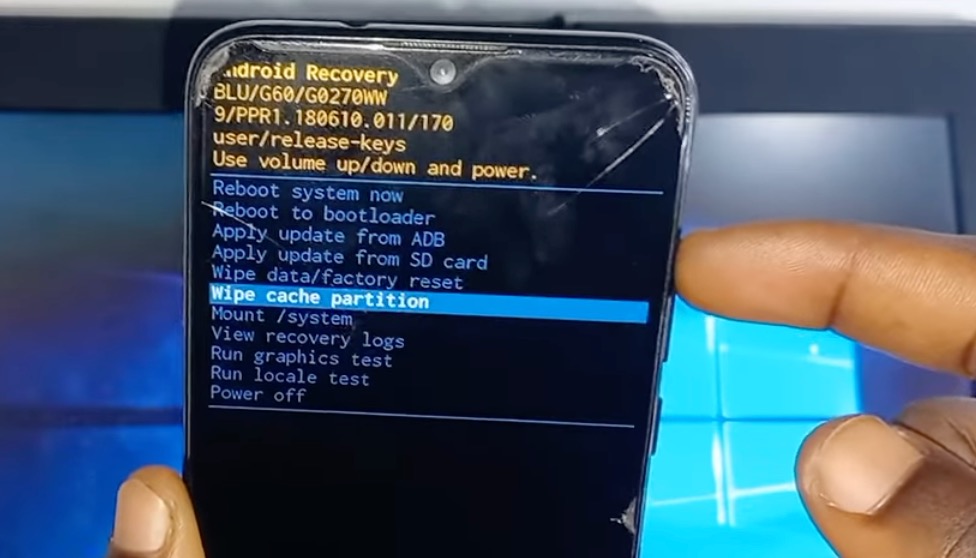
BLU phone FRP troubleshooting depends on the model, Android version, chipset, and current device state.
First Check: Is This Really FRP?
A BLU phone FRP case usually appears after a factory reset and asks you to verify a previously synced Google account. This is different from a screen lock, SIM lock, carrier lock, bootloop, dead boot, firmware failure, or a hardware issue.
If the phone only asks for a PIN, pattern, password, carrier unlock, or shows a boot error, this page may not match your case. Confirm the lock type before choosing any method.
BLU Phone FRP Method Decision Table
Use this table to decide which method category is realistic. The right path depends on the BLU model, Android version, chipset, security patch, setup-screen access, and whether you have a Windows PC.
| Method Category | Best For | Requires PC? | Likely Fit on BLU? | Main Limitation | Recommended Next Step |
| No-PC browser / Settings route | Older builds where setup-screen entry points still open useful apps or pages | No | Limited | Browser, Settings, share-menu, app-link, or accessibility access may be blocked | Check no-PC method limits |
| FRP APK route | Devices where browser access, APK installation, and permissions are still available | No | Low to limited | APK download, package installer, unknown-source permission, or shortcut access may be blocked | Understand APK risks first |
| MTK-related repair path | Advanced repair environments that have confirmed a MediaTek-based BLU model | Yes | Advanced only | Wrong files, drivers, addresses, or firmware assumptions can damage the device | Review MTK FRP limits |
| SPD / Unisoc-related repair path | Advanced repair environments that have confirmed a Unisoc or Spreadtrum-based BLU model | Yes | Advanced only | Firmware package mismatch, driver issues, and tool configuration mistakes can cause failure | Use only with professional repair knowledge |
| PC-based guided option | Repeated failures, newer Android builds, or users who need a structured compatibility check | Yes | Often more practical after manual failures | Compatibility still depends on model, chipset, patch level, USB access, and current FRP screen | Compare PC-based FRP options |
Why BLU Phone FRP Methods Often Fail
BLU FRP methods often fail because BLU models are not all built the same way. A method shown for one BLU phone may fail on another because the chipset, Android version, firmware build, or security patch is different.
- Wrong chipset assumption: a MediaTek-related method will not fit a Unisoc / Spreadtrum model, and the reverse is also true.
- Browser route blocked: the setup screen may not allow useful browser, app-link, or settings access.
- APK installation blocked: download, package installer, unknown-source permission, or file manager access may be restricted.
- Driver detection fails: USB drivers, cable quality, USB mode, or Windows driver restrictions may prevent proper PC communication.
- Firmware file mismatch: using files intended for a different model, region, build, or chipset can create boot or repair problems.
If you already tried several methods and reached the same failure, start with the FRP bypass not working guide before trying another APK, firmware file, or tool.
BLU Phones by Android Version
BLU phones may appear with different Android versions depending on model, region, carrier, and update history. Do not assume that a method applies just because the brand name matches.
- Older Android builds: some no-PC or APK-style routes may still be discussed online, but they depend on available browser, Settings, file manager, or share-menu access.
- Android 11 and newer: no-PC and APK routes are often more restricted. See the Android 11 FRP guide for version-level limits.
- Unknown Android version: check the box, seller listing, receipt, recovery screen, model label, or previous owner information before choosing a method.
Why Chipset Matters on BLU Phones
Many BLU FRP discussions mention MTK, MediaTek, SPD, Spreadtrum, or Unisoc. These terms refer to chipset families, and they matter because tools and repair workflows are not interchangeable.
If you do not know the chipset, do not choose a chipset-specific method. Guessing can lead to driver failure, wrong-tool errors, firmware mismatch, or a device state that is harder to repair.
For ordinary users, chipset information should be used as a compatibility clue, not as a reason to run random firmware tools. If the model, chipset, and Android version are unclear, use diagnosis first.
No-PC BLU FRP Methods: When They May Still Be Worth Checking
A no-PC BLU method may be worth checking only when the phone still allows a useful setup-screen entry point. This could include browser access, app-link access, file manager access, share-menu access, or a settings route that still reaches a relevant screen.
If the device blocks browser access, refuses APK installation, loops back to Google verification, or prevents settings access, the no-PC path is probably not suitable for that specific phone. Repeating the same video steps usually will not change the result.
About MTK / SPD Tool Claims
Some BLU guides mention SP Flash Tool, scatter files, ResearchDownload, PAC files, or partition-level operations. These are advanced repair topics, not ordinary no-PC FRP methods.
MTK and SPD-related repair work can fail because of model mismatch, chipset mismatch, wrong firmware packages, driver issues, or incorrect tool settings. A mistake can cause data loss, boot failure, connectivity issues, or a harder repair case.
UnlockLab does not recommend firmware-flashing, partition-level, or chipset-tool procedures for ordinary users. If you are not trained for this type of repair work, start with safer diagnosis and compatibility checks first.
When a PC-Based Option Makes More Sense
A PC-based option may make more sense when no-PC, APK, browser, Settings, or app-link routes have already failed. However, PC-based options still require compatibility checks. A tool may fail if the model is unsupported, the chipset path is wrong, the USB driver is missing, the cable is charge-only, or the current security patch is not supported.
If you are unsure which path fits your BLU phone, use the FRP Solution Finder before choosing a no-PC, APK, chipset-related, or PC-based route.
What to Avoid With BLU Phone FRP Bypass
- Do not trust claims that one BLU FRP method works on every BLU model, Android version, chipset, or patch.
- Do not download random APKs if browser, installer, or unknown-source access is already blocked.
- Do not run MTK or SPD tools without confirming the exact model, chipset, and firmware context.
- Do not use random scatter, PAC, firmware, or partition files from unknown sources.
- Do not assume a PC tool will work without checking USB drivers, chipset support, and model compatibility.
- Do not use FRP methods on a device you do not legally own or are not authorized to access.
Recommended Next Step
If you know the exact BLU model, Android version, and chipset, start with the matching method category and identify the failure point first. If you do not know the model, chipset, version, or method category, use the Finder instead of guessing.
Start FRP Solution Check
|
Compare PC-Based FRP Options
FAQ: BLU Phone FRP Bypass
Can I bypass FRP on a BLU phone without a PC?
Sometimes, but only if the phone still allows a working setup-screen entry point such as browser, app-link, file manager, share-menu, or Settings access. On newer Android builds, these routes are often blocked.
Why do BLU APK methods fail?
APK methods can fail when the phone blocks download, package installer access, unknown-source permission, file manager access, or the shortcut needed to reach useful settings or account screens.
Is my BLU phone MTK or SPD?
It depends on the exact model and region. Check the model name, device box, recovery information, or reliable specs before choosing any chipset-specific path. Do not guess based only on the BLU brand name.
Should I use SP Flash Tool or ResearchDownload for BLU FRP?
Only trained repair technicians should consider chipset tools such as SP Flash Tool or ResearchDownload. These tools can involve drivers, firmware files, chipset matching, and partition-level risk.
What should I do if my BLU phone is not detected by a PC?
PC detection can fail because of drivers, cable quality, USB port, battery level, wrong device mode, or unsupported chipset path. Identify the failure point before trying another tool or firmware file.
What should I do if every BLU FRP method fails?
Stop repeating the same method and diagnose the failure category first. If no-PC, APK, PC detection, chipset, or tool paths fail, review the FRP bypass not working guide and compare a structured PC-based option only after checking compatibility.
Does UnlockLab guarantee BLU phone FRP bypass success?
No. Results depend on model, Android version, chipset, security patch, available entry points, PC access, USB detection, and legal ownership. UnlockLab does not claim guaranteed results or universal compatibility.