Samsung Galaxy A22 FRP Bypass (2026 Guide): Unlock 4G & 5G Models on Android 14
Quick Summary
- The Problem: The standard
*#0*#emergency code method is largely patched on Android 13/14 (Binary U7/U8 firmware). - The Free Solution: The “TalkBack to Google Maps” loophole still works for 4G models, but you should pair it with Samsung Smart Switch for the highest success rate.
- The 5G Obstacle: The A22 5G (SM-A226B) on Android 14 often requires a “Test Point” hardware short because the buttons no longer trigger BROM mode.
- Driver Fix: If your PC doesn’t detect the phone, you likely need to disable Driver Signature Enforcement on Windows 11.
- Software Solution: iToolab UnlockGo (Android) is recommended if you cannot get the free ADB drivers to handshake with the U7 firmware.
Factory Reset Protection (FRP) is a standard security protocol that locks the device to the original Google account after a reset. While effective against theft, it often traps legitimate owners. This guide covers the Samsung Galaxy A22 FRP bypass procedure, specifically updated for the Android 13 security patch (February 2026) and Android 14 environments.
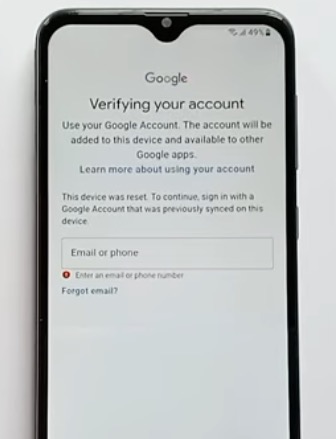
Samsung Galaxy A22 FRP bypass
Facing a locked device when you need it most is frustrating. Recently, a parent reached out after finding their teenager’s old Galaxy A22 4G. They intended to give it to a younger child but were blocked by a forgotten pattern and Google password. Like many, they tried the common “Emergency Call” methods, but the device simply wouldn’t enter Test Mode. They needed a reliable guide to bypass this lock using a PC and a simple USB cable, avoiding expensive repair shops.
This article outlines the exact steps to resolve this. We will start with the manual (free) methods for those on a budget, and then cover the software tools for those facing stubborn firmware.
Method 1: Bypass A22 4G Without a PC (TalkBack & Smart Switch)
For the Samsung A22 4g frp bypass, the manual approach is still effective, though Samsung has patched the direct “Open YouTube” command. We now use a detour through Google Maps and leverage Samsung Smart Switch to restore a clean account.
Note: This method works best on the SM-A225F. It requires patience and a second Samsung phone (borrowed from a friend or family member) to transfer data.
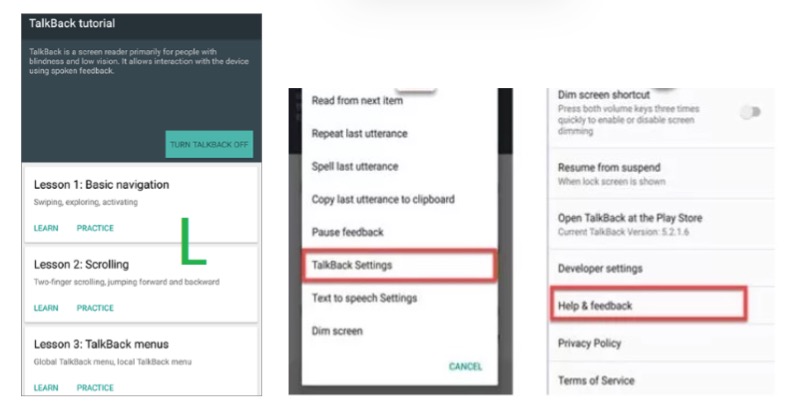
Talkback L-gesture
Step 1: Accessing the Browser via TalkBack
- Enable TalkBack: On the Welcome screen, hold Volume Up + Volume Down simultaneously. When the prompt appears, release and hold them again to confirm.
- Gesture Command: Draw a reverse “L” shape (swipe right, then quickly up) on the screen. Tap “Use Voice Commands” once to select, then double-tap to activate.
- Voice Entry: Say “Open Google Assistant.” When the assistant pops up, say “Open Google Maps.” (Note: Saying “Open YouTube” directly will likely trigger an “Update YouTube” error).
- The Maps Detour:
- Once in Maps, tap the microphone icon in the search bar.
- Say “Open Google Chrome.”
- You are now in the browser.
Step 2: The Smart Switch Restoration
This is the critical step often missing from other guides. Once in Chrome, you don’t need to download risky APKs; you just need to open the phone’s native settings.
- Open Settings: In Chrome, search for a reliable shortcut provider (like FRPfile or GSMNeo) and select “Open Settings” or “Open Galaxy Store.”
- Launch Smart Switch: In the phone’s Settings, scroll to Accounts and backup > Bring data from old device (Smart Switch).
- If prompted, update the app. You may need a Samsung Account to do this.
- Transfer Account:
- Open Smart Switch on your spare Samsung phone (the unlocked one).
- Connect the two phones (wirelessly or via cable).
- Select “Accounts” and “Settings” to transfer from the spare phone to the locked A22.
- Finalize: Once the transfer is complete, the locked A22 will now recognize the Google Account from your spare phone. Restart the device and set it up normally.
Method 2: The 5G BROM Exploit (When #0# Fails)
For the sm-a226b frp bypass android 14, the standard methods often fail because the MediaTek Dimensity 700 chipset (MT6833) locks down the Test Mode on newer binaries (U7/U8). You must use a “BROM Mode” exploit.
Critical Driver Fix for Windows 11 Users:
Before attempting this, you must disable Driver Signature Enforcement on your PC. Without this, the MTK drivers will fail to install, and the phone will simply charge instead of connecting.
- How to fix: Settings > Recovery > Advanced Startup > Restart Now. troubleshoot > Advanced options > Startup Settings > Restart. Press 7 to Disable driver signature enforcement.
Option A: The Button Combination (Older Firmware)
- Power off the A22 5G completely.
- Hold both Volume Up + Volume Down.
- Connect the USB cable to the PC (do not press Power).
- If the tool recognizes the device, the exploit will run.
Option B: The Test Point (Binary U7/U8 Firmware)
If the button combination does not work, Samsung has likely disabled it in the bootloader. You must perform a hardware “Test Point.”
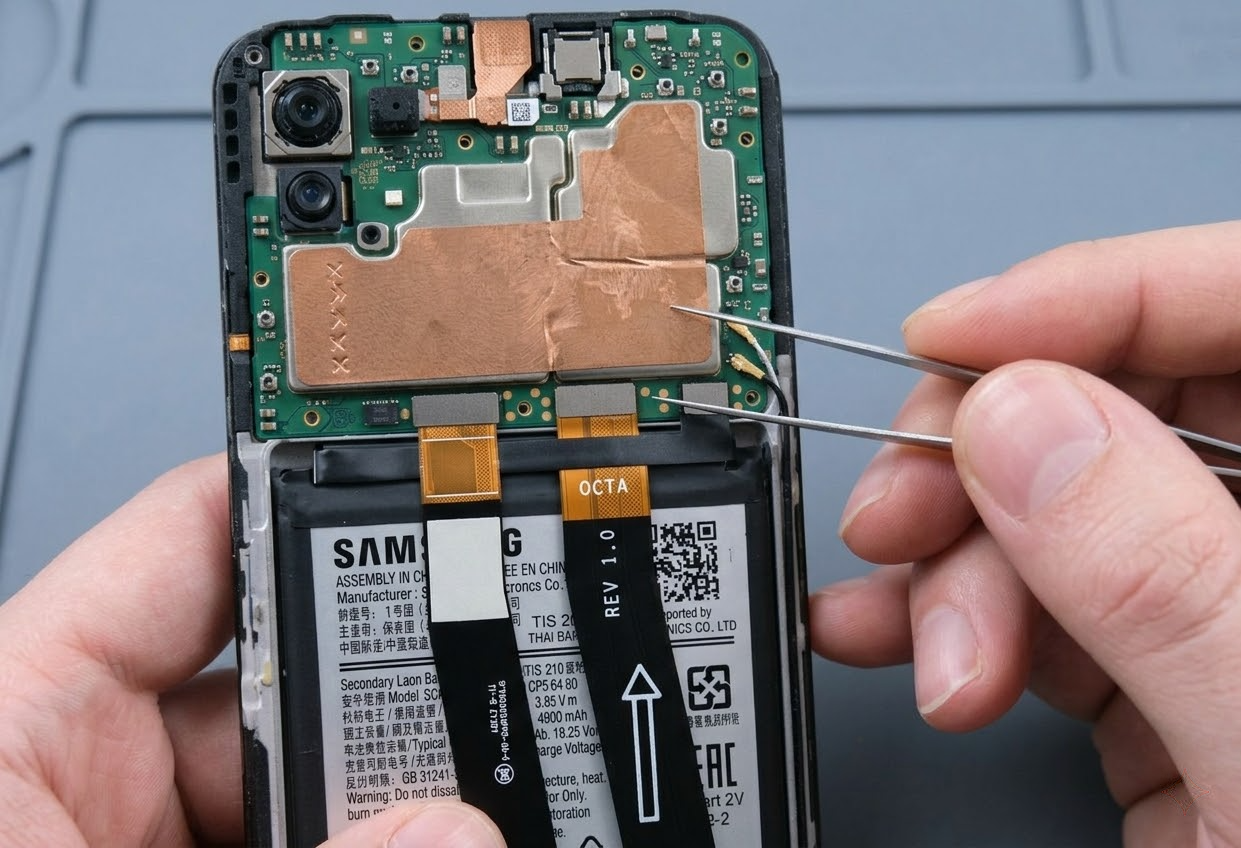
Samsung Galaxy A22 5G Test Point
- Preparation: Carefully remove the back cover and the plastic motherboard shield of the A22.
- Short the Point: Use metal tweezers to connect the Test Point (shown in the image above) to the metal ground shield.
- Connect: While holding the tweezers in place, connect the USB cable. The PC should now detect the device as “MediaTek Preloader” or “MTK USB Port.”
Method 3: One-Click Tools (When Manual Methods Fail)
If the manual TalkBack method is too complex, or you are uncomfortable opening your phone for the Test Point, professional software is the alternative. While free tools like SamFW are excellent, they sometimes struggle with the specific offsets required for Binary U7/U8 firmware on Android 14.
We recommend iToolab UnlockGo (Android) for users who need a simplified interface that handles the driver conflicts automatically. Unlike generic tools, it frequently updates its “Auto-Bypass” protocols to match the latest Samsung security patches, reducing the “Waiting for ADB” errors common with free utilities.
Steps to Unlock via Tool:
- Launch the Tool: Open iToolab UnlockGo (Android) and select “Bypass Samsung FRP.”
- Connect Device: Connect your Galaxy A22.
- Select Strategy: Choose “All Android Versions.” The tool will attempt to enable ADB via the
*#0*#command first. - Fallback Mode: If the emergency code fails (common on Feb 2026 patches), the tool will prompt you to use the integrated logic that mimics the Smart Switch or Alliance Shield protocols, automating the steps that usually require 20 minutes of tapping.
This method is efficient for those who view their time as more valuable than the software license fee.
Troubleshooting: Why is my A22 not detected?
Connection failures are the most common obstacle during a Samsung Galaxy A22 FRP bypass. If your computer displays “Device Not Recognized” or nothing happens, check these factors:
- Samsung USB Driver v1.7.59: Do not rely on Windows Update. You must download and install this specific version of the Samsung drivers.
- MTK Driver Conflict: For 5G models, if you see “MT65xx Preloader” appear and then strictly disappear, your generic Windows drivers are overriding the specific MTK drivers. Refer to the “Driver Signature Enforcement” fix in the BROM section above.
- Cable Quality: Ensure you are using a data cable, not a charging cable. Test the cable on another phone to be sure.
Frequently Asked Questions
Is it better to use a tool or a manual bypass?
It depends on your firmware version. For older Android 11/12 versions, manual bypasses are easy. However, for the Android 13 security patch in February 2026, Samsung has patched many holes. A professional tool updates its algorithms to handle these patches (specifically Knox 3.8 protocols) automatically, whereas manual methods often require you to downgrade apps or use glitches that may be fixed by the time you read this.
Can I use the “SIM PIN” method in 2026?
No. The method involving locking a SIM card to glitch the notification bar was patched in One UI 5.1. It is highly unlikely to work on any A22 running the current software.
I followed the instructions, but SamFW is stuck at “Waiting for ADB.” Why?
This usually happens because the firmware on your phone (likely Binary U7 or U8) has a new security patch that blocks the standard ADB trigger command. Free tools often have a delay in updating their databases for these specific binary offsets. You can either try the Smart Switch method (Method 1) or use a premium tool like UnlockGo that supports the latest patch definitions.
Suggestion for author: “Software solutions are updated weekly. If a method fails today, check for a tool update tomorrow.”
Conclusion
Regaining access to your Samsung Galaxy A22 is entirely possible, even with the stricter security of the Android 13 security patch in February 2026.
- For the budget-conscious: Start with Method 1. Using the TalkBack-to-Maps detour combined with Samsung Smart Switch is the most reliable free method currently available.
- For the 5G user: Be prepared to use the Test Point method if the button combination fails. Remember to fix your Windows drivers first.
- For the non-technical user: If the steps above feel overwhelming or the drivers won’t cooperate, iToolab UnlockGo (Android) offers a streamlined alternative to bypass the Google lock without risking data corruption or malware from unverified APK sites.
Choose the method that matches your comfort level with technology, and you’ll have your device back in working order shortly.